


Joint Inspector#
The isaacsim.gui.property extension provides a standalone Joint Inspector window for Adjusting per-joint values across the robots present on the stage.
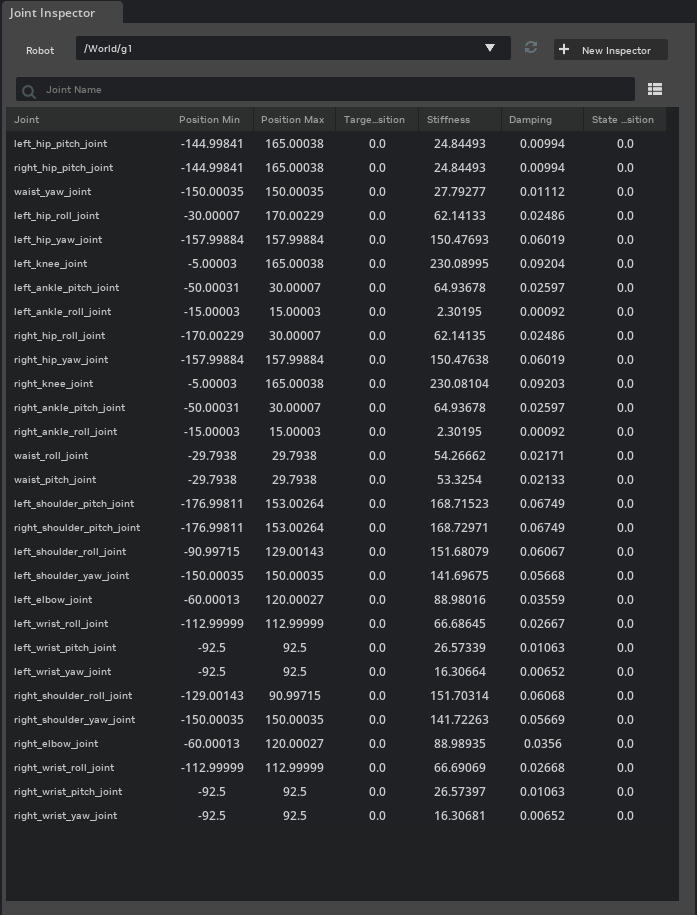
Opening the Window#
Open the inspector through Tools > Robotics > Joint Inspector.
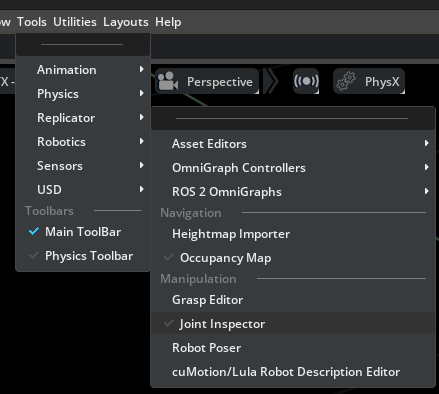
The window docks to the left of the viewport.
Selecting a Robot#
The header exposes a robot picker, a refresh button, and a + New Inspector button.
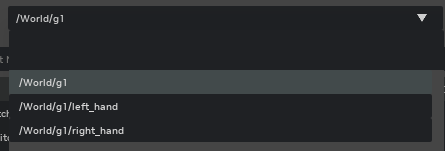
Robot drop-down – lists every prim on the stage that has
IsaacRobotAPIapplied. Click the drop-down to open a searchable popup; type any substring of the prim path to narrow the list. Selecting a robot rebinds the table to that robot’s joints.Refresh – rescans the stage for prims with
IsaacRobotAPI. Use this after authoring a new robot in a script editor or after switching layers.+ New Inspector – spawns an additional Joint Inspector window. Each window keeps an independent robot selection and column set, which is useful for side-by-side comparison of two robots or two views of the same robot.
The window listens to stage open/close and asset-load events so the robot list refreshes automatically when assets finish loading.
Filtering Joints#
A search field above the table filters the joint rows by name. Two matching modes are supported:
Substring (default) – a case-insensitive substring match against the joint short name and the full prim path.
armmatchesshoulder_arm_jointas well as/World/UR10/shoulder/arm.Glob (``*`` or ``?`` in the query) –
fnmatch-style wildcards. The query is also matched in a substring-fenced form (*pattern*) sohand*finds anything that containshand, mirroring the typical search-bar mental model.
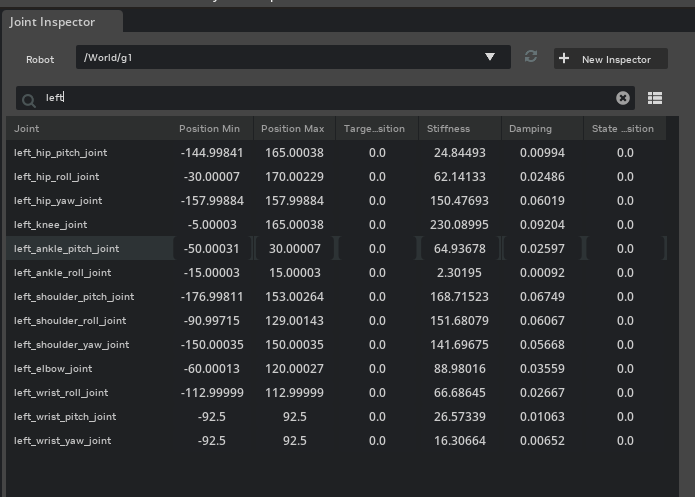
A clear button on the right of the field removes the query and restores the full list.
Choosing Columns#
The hamburger button on the right of the toolbar opens a categorized columns popup.
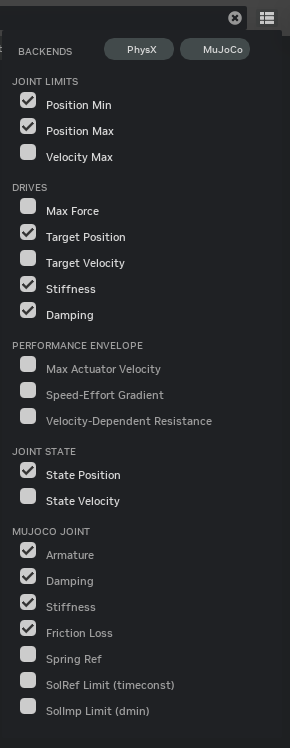
The popup contains:
Backend pills at the top –
PhysXandMuJoCotoggle the visibility of every column belonging to that simulation backend. The pill state does not flip the per-column checkboxes, so re-enabling a backend restores the previously checked columns.Categorized checkbox rows for the available column groups.
The available column groups are summarized below.
Group |
Backend |
Columns |
|---|---|---|
Joint Limits |
USD / PhysX |
|
Drives |
USD |
|
Performance Envelope |
PhysX |
|
Joint State |
PhysX |
|
MuJoCo Joint |
MuJoCo |
|
Column behavior:
Items whose backing API is not applied on any joint of the current robot stay clickable but render dimmed; their tooltip explains why the column is currently empty.
The user’s column selection persists across robot switches. A column reappears as soon as a robot whose joints back the column is selected.
Joint Limitscolumns belong to USD core schemas and are not affected by the backend pills.
Per-axis fan-out#
When every joint authoring a multi-apply schema has at most one axis applied (the common case for revolute and prismatic chains), the per-axis dimension is collapsed and the column appears once. The cell automatically picks the joint’s authored axis or its natural axis (angular for revolute, linear for prismatic).
Multi-DOF (for example, D6Joint) joints make the column fan out: one column per distinct axis (transX, transY, transZ, rotX, rotY, rotZ) is rendered, with the axis token appended to the header label.
Editing Values#
Each cell is a free-form ui.FloatDrag bound directly to the underlying USD attribute. Drag horizontally to scrub the value or click to type a number. double-click or Ctrl-click to type a number.
Behavior of empty cells, multi-row edits, and array-typed attributes:
Cells whose backing API is not applied on the joint render empty rather than as a disabled
0.0field. This avoids implying a meaningful zero where no value is authored.Click rows to select them.
Ctrl/CmdandShiftallow multi-row selection. Editing one cell of a selected row mirrors the new value to the same column on every other selected row whose attribute exists.The MuJoCo
solreflimitandsolimplimitcolumns surface only the dominant element of the underlying array (timeconstanddmin); the rest of the array is preserved on write.
The status line above the table shows the number of joints currently displayed.
Default Visible Columns#
The first time the inspector is opened, the following columns are visible:
Position MinandPosition Max(Joint Limits)Target Position,Stiffness,Damping(Drives)State Position(Joint State)Armature,Damping,Stiffness,Friction Loss(MuJoCo Joint)
Use the columns menu to add or remove columns from this set.