


Physics raycast sensor#
The physics raycast sensor uses physics raycasts to measure distances between a sensor prim and surrounding geometry. Unlike the fixed-pattern sensors in Isaac Sim, the physics raycast sensor accepts explicit per-ray origin offsets, direction vectors, and optional time offsets, making it suitable for a wide range of configurations, including solid-state sensors, rotating sensors, and beam curtains.
Each physics step, the sensor casts rays from the prim’s world-space position (plus per-ray origin offsets) along the specified directions.
When rayTimeOffsets are provided, only the subset of rays whose time offsets fall within the current physics step’s time window are fired, producing a sweeping pattern over multiple steps.
See the Isaac Sim Conventions documentation for a complete list of Isaac Sim conventions.
Physics raycast sensor properties
enabledparameter determines if the sensor is running or not.numRays(unsigned int) parameter specifies the authoritative ray count.rayOriginsandrayDirectionsmust each have exactly this many elements. This is set automatically when usingRaycast.create()or theRaycastauthoring constructor.minRangeparameter specifies the minimum detection range in stage length units. Rays start atorigin + direction * minRange.maxRangeparameter specifies the maximum detection range in stage length units.rayOriginsparameter specifies per-ray origin translations in the sensor’s local coordinate frame.rayDirectionsparameter specifies per-ray cast direction vectors in the sensor’s local coordinate frame. Vectors are normalized before use.rayTimeOffsetsparameter specifies per-ray time offsets in seconds. When provided, the sensor fires only rays whose offsets fall within the current physics step, enabling sweeping patterns. The sweep period ismax(rayTimeOffsets).outputFrameOfReferenceparameter selects the coordinate frame for hit positions and normals.SENSORreturns results in the sensor’s local coordinate frame;WORLDreturns results in world coordinates.reportHitPrimPathsparameter enables resolving the USD prim path of each hit surface.
For the full USD attribute definitions, see the Raycast Sensor schema reference.
Note
All sensor properties are read once when the simulation starts. Changing attribute values while the simulation is playing has no effect; stop and restart the simulation to pick up changes.
GUI#
Creating a physics raycast sensor#
To create a physics raycast sensor from the GUI:
To create a Physics Scene, go to the top Menu Bar and click Create > Physics > Physics Scene. Verify that there is now a
PhysicsScenePrim in the Stage panel on the right.Optionally select a parent prim in the Stage panel.
Go to the top Menu Bar and click Create > Sensors > Physics Raycast Sensor and choose one of the preset configurations:
Solid State Physics Raycast Sensor: A rectangular grid of rays with configurable horizontal and vertical field of view.
Rotating Physics Raycast Sensor: Rays distributed across 360 degrees with time offsets that produce a sweeping pattern at 1 Hz.
Beam Curtain Physics Raycast Sensor: Parallel rays spread vertically for proximity detection.
To change the position and orientation of the sensor, select the sensor prim and modify the Transform properties under the Property tab.
To change sensor properties, expand the Raw USD Properties section to modify range, ray geometry, and output frame settings.
Physics raycast sensor example#
To run the physics raycast sensor example:
Activate Robotics Examples tab from Windows > Examples > Robotics Examples.
Click Robotics Examples > Sensors > Physics Raycast Sensor > Load Scene.
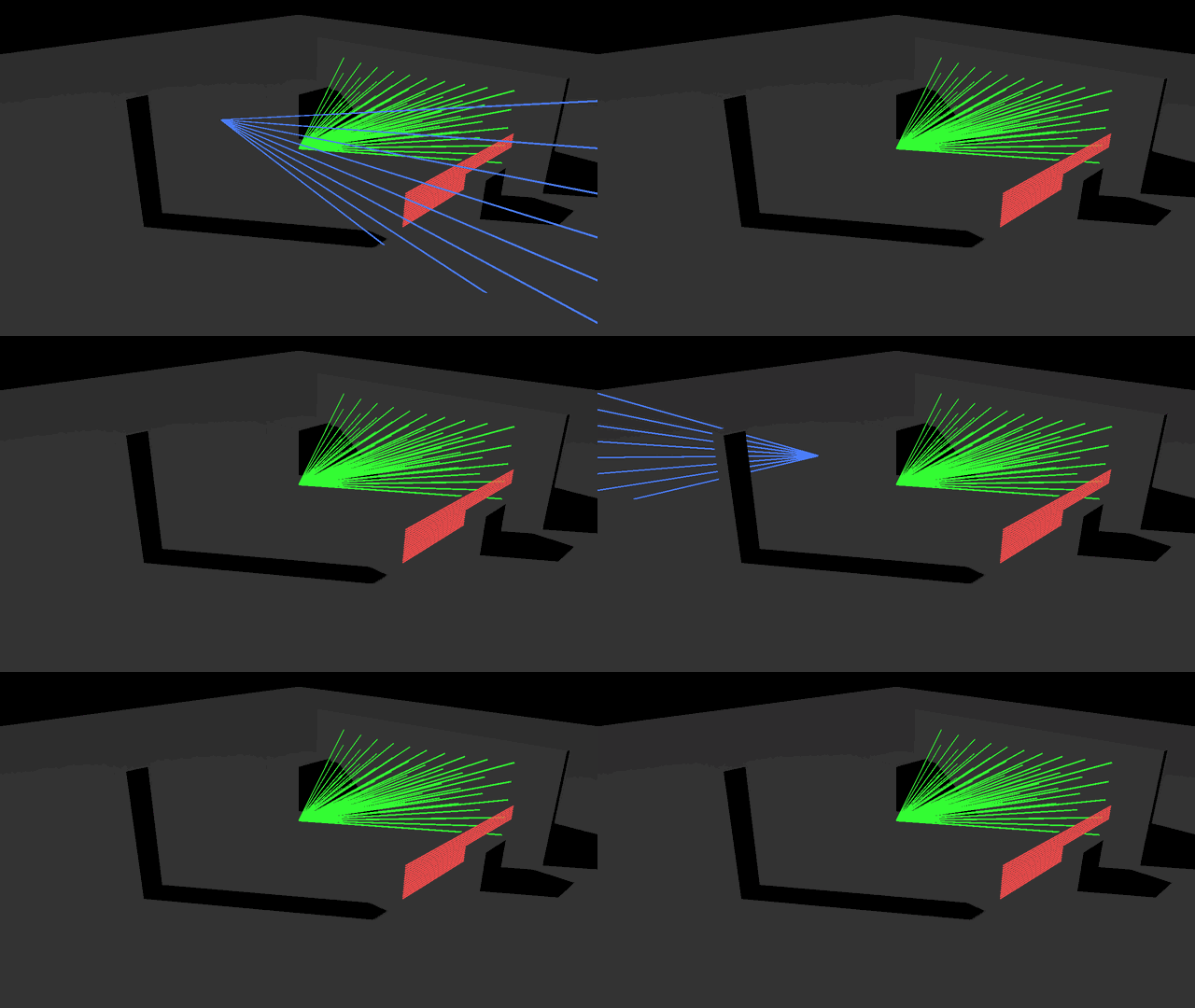
Verify that three physics raycast sensors are created: a solid state sensor (green rays), a rotating sensor (blue rays), and a beam curtain sensor (red rays).
Press the Play button to begin simulating.
Observe the debug ray visualization in the viewport and the hit count / min depth readings in the example window.
OmniGraph workflow#
The following is a tutorial on using OmniGraph to read and visualize physics raycast sensor data.
Scene setup#
Create a Physics Scene by Create > Physics > Physics Scene.
Add collision geometry (e.g., Create > Mesh > Cube and apply Add > Physics > Colliders Preset).
Add a ground plane by Create > Physics > GroundPlane.
Create a physics raycast sensor by Create > Sensors > Physics Raycast Sensor > Solid State Physics Raycast Sensor.
OmniGraph setup#
To set up the OmniGraph to collect readings from this sensor:
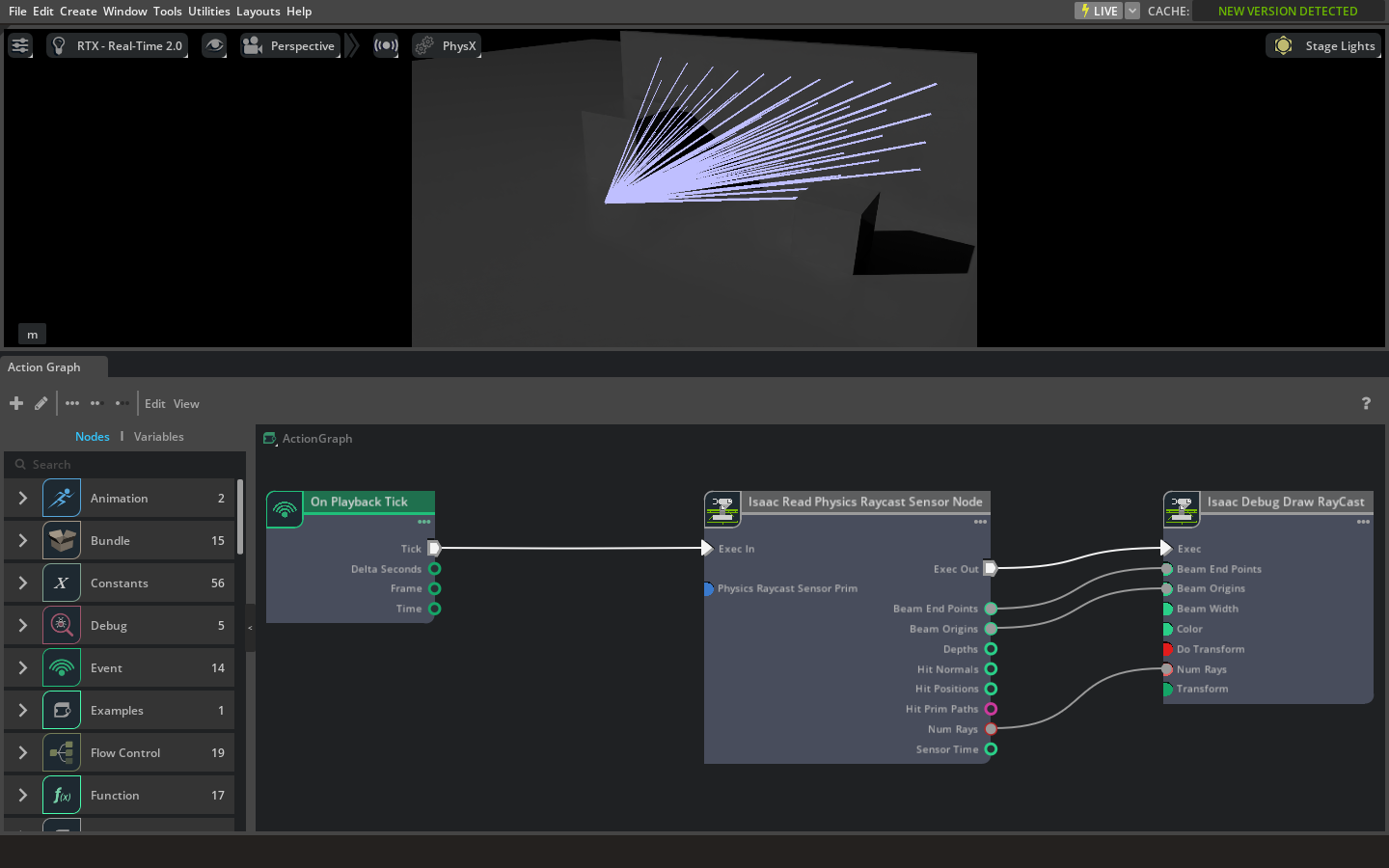
Create a new action graph by navigating to Window > Graph Editors > Action Graph, and selecting New Action Graph in the new tab that opens.
Add the following nodes to the graph:
On Playback Tick (
omni.graph.action.OnPlaybackTick): Executes the graph every simulation timestep.Isaac Read Physics Raycast Sensor (
isaacsim.sensors.physics.IsaacReadRaycastSensor): Reads the physics raycast sensor. In the Property tab, setPhysics Raycast Sensor Primto the path of your sensor prim (e.g.,/World/Sensors/Solid_State_Physics_Raycast_Sensor).Debug Draw RayCast (
isaacsim.util.debug_draw.DebugDrawRayCast): Visualizes the rays in the viewport.
Configure the Debug Draw RayCast node:
Set
inputs:doTransformto False. The read node already provides world-space beam origins and endpoints; applying an additional transform will produce incorrect visualization.
Connect the nodes with all five required connections:
On Playback Tick
outputs:tick→ Isaac Read Physics Raycast Sensorinputs:execInIsaac Read Physics Raycast Sensor
outputs:execOut→ Debug Draw RayCastinputs:execIsaac Read Physics Raycast Sensor
outputs:beamOrigins→ Debug Draw RayCastinputs:beamOriginsIsaac Read Physics Raycast Sensor
outputs:beamEndPoints→ Debug Draw RayCastinputs:beamEndPointsIsaac Read Physics Raycast Sensor
outputs:numRays→ Debug Draw RayCastinputs:numRays
Important
The
numRaysconnection is required. Without it, the Debug Draw node defaults to 0 rays and renders nothing. Similarly,doTransformmust be set to False because the beam origins and endpoints from the read node are already in world coordinates.Press the Play button. If set up correctly, ray lines appear from the sensor to hit points in the viewport.
Programmatic OmniGraph setup#
The same graph can be created programmatically using og.Controller:
# Programmatic OmniGraph setup: Physics Raycast Sensor + Debug Draw visualization
import omni.graph.core as og

sensor_prim_path = "/World/Sensors/Solid_State_Physics_Raycast_Sensor"

action_graph, _, _, _ = og.Controller.edit(
    {"graph_path": "/World/ActionGraph", "evaluator_name": "execution"},
    {
        og.Controller.Keys.CREATE_NODES: [
            ("OnPlaybackTick", "omni.graph.action.OnPlaybackTick"),
            ("ReadRaycast", "isaacsim.sensors.physics.IsaacReadRaycastSensor"),
            ("DebugDraw", "isaacsim.util.debug_draw.DebugDrawRayCast"),
        ],
        og.Controller.Keys.SET_VALUES: [
            ("ReadRaycast.inputs:raycastSensorPrim", sensor_prim_path),
            ("DebugDraw.inputs:doTransform", False),
        ],
        og.Controller.Keys.CONNECT: [
            ("OnPlaybackTick.outputs:tick", "ReadRaycast.inputs:execIn"),
            ("ReadRaycast.outputs:execOut", "DebugDraw.inputs:exec"),
            ("ReadRaycast.outputs:beamOrigins", "DebugDraw.inputs:beamOrigins"),
            ("ReadRaycast.outputs:beamEndPoints", "DebugDraw.inputs:beamEndPoints"),
            ("ReadRaycast.outputs:numRays", "DebugDraw.inputs:numRays"),
        ],
    },
)
Note
Key differences from a naive setup that may cause visualization to fail:
``doTransform`` must be False: The read node outputs world-space coordinates. The Debug Draw node’s
doTransforminput applies an additional matrix transform by default, which displaces the rays to incorrect positions.``numRays`` must be connected: Without this, the draw node doesn’t know how many rays to render and defaults to zero.
Execution chain must be complete:
execIn→execOut→execensures the draw node fires after the read node has populated its outputs.
Standalone Python#
Creating a physics raycast sensor#
For the example snippets below, prepare the scene using the following snippet by adding a PhysicsScene, collision geometry, and a sensor parent Xform.
import omni.usd
from pxr import Gf, Sdf, UsdGeom, UsdPhysics

stage = omni.usd.get_context().get_stage()

UsdGeom.SetStageUpAxis(stage, UsdGeom.Tokens.z)
UsdGeom.SetStageMetersPerUnit(stage, 1.0)

UsdPhysics.Scene.Define(stage, Sdf.Path("/World/PhysicsScene"))

ground = UsdGeom.Cube.Define(stage, "/World/GroundPlane")
ground.GetSizeAttr().Set(1.0)
ground.AddTranslateOp().Set(Gf.Vec3d(0, 0, -0.05))
ground.AddScaleOp().Set(Gf.Vec3f(50, 50, 0.1))
UsdPhysics.CollisionAPI.Apply(ground.GetPrim())

wall = UsdGeom.Cube.Define(stage, "/World/Obstacles/Wall")
wall.GetSizeAttr().Set(1.0)
wall.AddTranslateOp().Set(Gf.Vec3d(5, 0, 1.5))
wall.AddScaleOp().Set(Gf.Vec3f(0.2, 8, 3))
UsdPhysics.CollisionAPI.Apply(wall.GetPrim())

UsdGeom.Xform.Define(stage, "/World/Sensors")
Using the Python API#
Physics raycast sensors are created with Raycast.create() (the authoring class) and the returned authoring object is wrapped with RaycastSensor for runtime data access. You must provide ray_origins and ray_directions arrays of the same length. The path must include the parent prim path.
import math

from isaacsim.sensors.experimental.physics import Raycast, RaycastSensor

# Generate a simple grid of ray directions for a solid state physics raycast sensor.
h_count, v_count = 10, 5
h_fov, v_fov = 60.0, 20.0
origins = []
directions = []
for vi in range(v_count):
    v_angle = math.radians(-v_fov / 2 + v_fov * vi / max(v_count - 1, 1))
    for hi in range(h_count):
        h_angle = math.radians(-h_fov / 2 + h_fov * hi / max(h_count - 1, 1))
        dx = math.cos(v_angle) * math.cos(h_angle)
        dy = math.cos(v_angle) * math.sin(h_angle)
        dz = math.sin(v_angle)
        origins.append([0.0, 0.0, 0.0])
        directions.append([dx, dy, dz])

sensor = RaycastSensor(
    Raycast.create(
        "/World/Sensors/Physics_Raycast_Sensor",
        min_range=0.4,
        max_range=100.0,
        ray_origins=origins,
        ray_directions=directions,
        output_frame="WORLD",
        translations=[[0.0, 0.0, 1.5]],
    )
)
Using time offsets#
To create a sensor with a sweeping pattern, provide ray_time_offsets. Rays are only fired when their time offset falls within the current physics step’s time window. The sweep period equals max(ray_time_offsets).
import math

from isaacsim.sensors.experimental.physics import Raycast, RaycastSensor

# Generate rays for a rotating physics raycast sensor with time offsets.
# Each azimuthal column is assigned a time offset within the sweep period.
# Only rays whose offsets fall in the current physics step are fired.
v_count = 8
azimuth_steps = 36
v_fov = 30.0
rotation_rate = 1.0
period = 1.0 / rotation_rate

origins = []
directions = []
time_offsets = []
for ai in range(azimuth_steps):
    h_angle = math.radians(360.0 * ai / azimuth_steps)
    t_offset = period * ai / azimuth_steps
    for vi in range(v_count):
        v_angle = math.radians(-v_fov / 2 + v_fov * vi / max(v_count - 1, 1))
        dx = math.cos(v_angle) * math.cos(h_angle)
        dy = math.cos(v_angle) * math.sin(h_angle)
        dz = math.sin(v_angle)
        origins.append([0.0, 0.0, 0.0])
        directions.append([dx, dy, dz])
        time_offsets.append(t_offset)

sensor = RaycastSensor(
    Raycast.create(
        "/World/Sensors/Rotating_Physics_Raycast_Sensor",
        min_range=0.4,
        max_range=100.0,
        ray_origins=origins,
        ray_directions=directions,
        ray_time_offsets=time_offsets,
        output_frame="WORLD",
        translations=[[0.0, 0.0, 1.5]],
    )
)
Using the RaycastSensor runtime#
The RaycastSensor class wraps an existing Raycast authoring object or an existing IsaacRaycastSensor prim for runtime data access. Configure and create new prims with Raycast.create().
from isaacsim.sensors.experimental.physics import Raycast, RaycastSensor

sensor = RaycastSensor(
    Raycast.create(
        "/World/Sensors/My_Sensor",
        ray_origins=[[0, 0, 0], [0, 0, 0]],
        ray_directions=[[1, 0, 0], [0, 1, 0]],
        min_range=0.4,
        max_range=100.0,
        output_frame="WORLD",
    )
)

# After simulation starts:
frame = sensor.get_data()
print(f"Depths: {frame['depths']}")
print(f"Hit positions: {frame['hit_positions']}")
Reading sensor output#
The physics raycast sensor is created dynamically on Play. Use RaycastSensor.get_sensor_reading() to read raw sensor data, or RaycastSensor.get_data() for a structured dictionary. The reading includes depths, hit positions, hit normals, and optionally hit prim paths.
The following snippet assumes you have created a sensor prim using one of the snippets above.
from isaacsim.sensors.experimental.physics import Raycast, RaycastSensor

sensor = RaycastSensor(
    Raycast.create(
        "/World/Sensors/Physics_Raycast_Sensor",
        ray_origins=[[0.0, 0.0, 0.0]],
        ray_directions=[[1.0, 0.0, 0.0]],
    )
)
reading = sensor.get_sensor_reading()

if reading.is_valid:
    print(f"Ray count: {reading.ray_count}")
    print(f"Depths: {reading.depths}")
    print(f"Hit positions: {reading.hit_positions}")
    print(f"Hit normals: {reading.hit_normals}")
The get_sensor_reading() function returns a RaycastSensorReading object with the following properties:
is_valid: Whether the reading contains valid data.ray_count: Number of rays in the reading.time: Simulation time of this reading in seconds.depths: Per-ray hit distances in stage length units. Rays that miss returnmaxRange.hit_positions: Per-ray hit positions as an Nx3 array, in the frame specified byoutputFrameOfReference.hit_normals: Per-ray surface normals at hit points as an Nx3 array.hit_prim_paths: Per-ray USD prim paths of hit surfaces (only populated whenreportHitPrimPathsis enabled).ray_origins_world: Per-ray world-space origins as an Nx3 array.ray_end_points_world: Per-ray world-space end points as an Nx3 array (useful for debug visualization).
The get_data() function returns a structured dictionary with depths, hit_positions, hit_normals, hit_prim_paths, time, and physics_step. ray_origins_world and ray_end_points_world are only available on the raw get_sensor_reading() result.
API documentation#
See the API Documentation for complete usage information.