


Environment Based Synthetic Dataset Generation with Infinigen#
This tutorial explains how to set up a synthetic data generation (SDG) pipeline in Isaac Sim using the omni.replicator extension and procedurally generated environments from Infinigen. The example uses the standalone workflow.
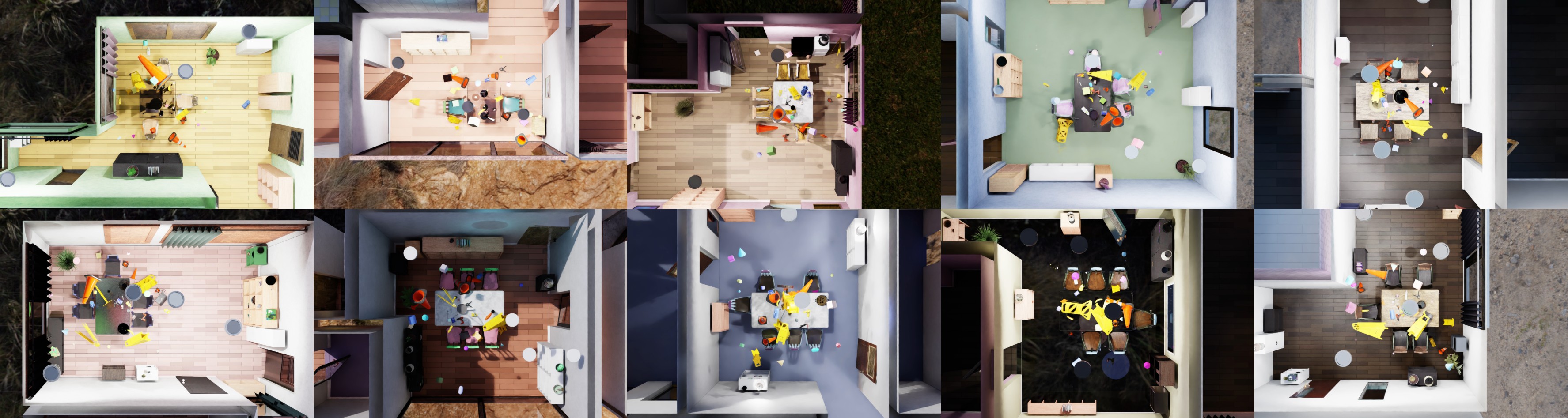
Example of Infinigen generated rooms.#

Example data collected from the synthetic dataset generation pipeline.#
Learning Objectives#
In this tutorial, you will learn how to:
Load procedurally generated environments from Infinigen as background scenes.
Prepare the environments for SDG and physics simulations.
Load physics-enabled target assets (labeled) for data collection and distractor assets (unlabeled) for scene diversity.
Use built-in Replicator randomizer graphs manually triggered at custom intervals, detached from the writing process.
Use custom USD / Isaac Sim API functions for custom randomizers.
Use multiple Replicator Writers and cameras (render products) to save different types of data from different viewpoints.
Use config files to easily customize the simulation and data collection process.
Understand and customize configuration parameters for flexibility.
Prerequisites#
Before starting this tutorial, you should be familiar with:
USD / Isaac Sim APIs for creating and manipulating USD stages.
Rigid-body dynamics and physics simulation in Isaac Sim.
Replicator randomizers and OmniGraph for a better understanding of the Replicator randomization graphs pipeline.
Running simulations as Standalone Applications.
Procedurally generating environments using Infinigen.
Generating Infinigen Environments#
Install Infinigen: Follow the installation instructions on the Infinigen GitHub Repository.
Note
The Infinigen scene generation step is only tested on Linux. Refer to the Infinigen platform support matrix for the current platform status, as Infinigen is an external library maintained outside of Isaac Sim.
Generate Environments: Use the Hello Room instructions to generate indoor scenes using various settings and parameters.
Example Script: Use the following example script (Linux) to generate multiple dining room environments with different seeds. The script can be run directly from the terminal.
# Loop from 1 to 10 to generate 10 scenes
for i in {1..10}
do
  # Create the output folders for both the Infinigen generation and the Omniverse export
  mkdir -p outputs/indoors/dining_room_$i
  mkdir -p outputs/omniverse/dining_room_$i

  # Step 1: Run Infinigen scene generation for a DiningRoom scene with a specific seed
  python -m infinigen_examples.generate_indoors \
    --seed $i \
    --task coarse \
    --output_folder outputs/indoors/dining_room_$i \
    -g fast_solve.gin singleroom.gin \
    -p compose_indoors.terrain_enabled=False restrict_solving.restrict_parent_rooms=\[\"DiningRoom\"\] &&

  # Step 2: Export the generated scene to Omniverse-compatible format
  python -m infinigen.tools.export \
    --input_folder outputs/indoors/dining_room_$i \
    --output_folder outputs/omniverse/dining_room_$i \
    -f usdc \
    -r 1024 \
    --omniverse
done
This script generates 10 unique dining room environments by varying the seed value.
The
infinigen_examples.generate_indoorscommand generates the environments and stores them inoutputs/indoors/dining_room_$i.The
infinigen.tools.exportcommand exports the generated environments to the selected format, saving them tooutputs/omniverse/dining_room_$i.The
-f usdcflag specifies the format of the exported file to USD.The
--omniverseflag ensures compatibility with Omniverse applications.
Scenario Overview#
In this tutorial, we will use procedurally generated environments as backdrops for synthetic data generation. These environments are then configured with colliders and physics properties, enabling physics-based simulations. Within each indoor environment, we define a “working area”—in this case, the dining table—where we will place both labeled target assets and unlabeled distractor assets.
The assets are divided into two categories:
Falling assets: Physics-enabled objects that interact with the environment and settle onto surfaces, such as the ground or table.
Floating assets: Objects equipped only with colliders that remain floating in the air.
For each background environment, we will capture frames in two scenarios:
Assets floating around the working area.
Physics-enabled assets that have settled on surfaces like the ground or table.
To capture these frames, we use multiple cameras (render products) configured with one or multiple writers. The cameras will be randomized for each frame, changing their positions around the working area and orienting toward randomly selected target assets.
Once the captures for one environment are complete, a new environment will be loaded, configured with colliders and physics properties, and the process will repeat until the desired number of captures is achieved.
During the capture process, we will apply randomizers at various frames to introduce variability into the scene. These randomizations include:
Object poses.
Lighting configurations, including dome light settings.
Colors of shape distractors.
By incorporating these randomizations, we increase the diversity of the dataset, making it more robust for training machine learning models.
Getting Started#
The main script for this tutorial is located at:
<install_path>/standalone_examples/replicator/infinigen/infinigen_sdg.py
This script is designed to run as a Standalone Application. The default configurations are stored within the script itself in the form of a Python dictionary. You can override these defaults by providing custom configuration files in JSON or YAML format.
Helper functions are located in the infinigen_sdg_utils.py file. These functions help with loading environments, spawning assets, randomizing object poses, and running physics simulations.
To generate a synthetic dataset using the default configuration, run the following command (on Windows use python.bat instead of python.sh):
./python.sh standalone_examples/replicator/infinigen/infinigen_sdg.py
To use a custom configuration file that supports multiple writers and other custom settings, use the –config argument:
./python.sh standalone_examples/replicator/infinigen/infinigen_sdg.py \
    --config standalone_examples/replicator/infinigen/config/infinigen_multi_writers_pt.yaml
Implementation#
The following sections provide an overview of the key steps involved in setting up and running the synthetic data generation pipeline. The complete implementation consists of two files: the main script and a utilities module.
Main script
"""Generate synthetic datasets using infinigen (https://infinigen.org/) generated environments."""

import argparse
import json
import os

import yaml
from isaacsim import SimulationApp

# Default config dict, can be updated/replaced using json/yaml config files ('--config' cli argument)
config = {
    "environments": {
        # List of background environments (list of folders or files)
        "folders": ["/Isaac/Samples/Replicator/Infinigen/dining_rooms/"],
        "files": [],
    },
    "capture": {
        # Number of captures (frames = total_captures * num_cameras)
        "total_captures": 9,
        # Number of captures per environment before running the simulation (objects in the air)
        "num_floating_captures_per_env": 2,
        # Number of captures per environment after running the simulation (objects fallen)
        "num_dropped_captures_per_env": 2,
        # Number of cameras to capture from (each camera will have a render product attached)
        "num_cameras": 2,
        # Resolution of the captured frames
        "resolution": (720, 480),
        # Disable render products throughout the piepline, enable them only when capturing the frames
        "disable_render_products": False,
        # Number of subframes to render (RealTimePathTracing) to avoid temporal rendering artifacts (e.g. ghosting)
        "rt_subframes": 8,
        # Use PathTracing renderer or RealTimePathTracing when capturing the frames
        "path_tracing": False,
        # Offset to avoid the images always being in the image center
        "camera_look_at_target_offset": 0.1,
        # Distance between the camera and the target object
        "camera_distance_to_target_range": (1.15, 1.45),
        # Number of scene lights to create in the working area
        "num_scene_lights": 3,
    },
    "writers": [
        {
            # Type of the writer to use (e.g. PoseWriter, BasicWriter, etc.) and the kwargs to pass to the writer init
            "type": "PoseWriter",
            "kwargs": {
                "output_dir": "_out_infinigen_posewriter",
                "format": None,
                "use_subfolders": True,
                "write_debug_images": True,
                "skip_empty_frames": False,
            },
        }
    ],
    "labeled_assets": {
        # Labeled assets with auto-labeling (e.g. 002_banana -> banana) using regex pattern replacement on the asset name
        "auto_label": {
            # Number of labeled assets to create from the given files/folders list
            "num": 6,
            # Chance to disable gravity for the labeled assets (0.0 - all the assets will fall, 1.0 - all the assets will float)
            "gravity_disabled_chance": 0.25,
            # List of folders and files to search for the labeled assets
            "folders": ["/Isaac/Props/YCB/Axis_Aligned/"],
            "files": ["/Isaac/Props/YCB/Axis_Aligned/036_wood_block.usd"],
            # Regex pattern to replace in the asset name (e.g. "002_banana" -> "banana")
            "regex_replace_pattern": r"^\d+_",
            "regex_replace_repl": "",
        },
        # Manually labeled assets with specific labels and properties
        "manual_label": [
            {
                "url": "/Isaac/Props/YCB/Axis_Aligned/008_pudding_box.usd",
                "label": "pudding_box",
                "num": 2,
                "gravity_disabled_chance": 0.25,
            },
            {
                "url": "/Isaac/Props/YCB/Axis_Aligned_Physics/006_mustard_bottle.usd",
                "label": "mustard_bottle",
                "num": 2,
                "gravity_disabled_chance": 0.25,
            },
        ],
    },
    "distractors": {
        # Shape distractors (unlabeled background assets) to drop in the scene (e.g. capsules, cones, cylinders)
        "shape_distractors": {
            # Amount of shape distractors to create
            "num": 20,
            # Chance to disable gravity for the shape distractors
            "gravity_disabled_chance": 0.25,
            # List of shape types to randomly choose from
            "types": ["capsule", "cone", "cylinder", "sphere", "cube"],
        },
        # Mesh distractors (unlabeled background assets) to drop in the scene
        "mesh_distractors": {
            # Amount of mesh distractors to create
            "num": 8,
            # Chance to disable gravity for the mesh distractors
            "gravity_disabled_chance": 0.25,
            # List of folders and files to search to randomly choose from
            "folders": [
                "/Isaac/Environments/Simple_Warehouse/Props/",
                "/Isaac/Environments/Office/Props/",
            ],
            "files": [
                "/Isaac/Environments/Hospital/Props/SM_MedicalBag_01a.usd",
                "/Isaac/Environments/Hospital/Props/SM_MedicalBox_01g.usd",
            ],
        },
    },
    # Physics GPU memory settings for the simulation (override defaults if scenes are complex)
    "physics": {
        # GPU collision stack size in bytes (default: 300 MB, PhysX default is only 64 MB which is
        # insufficient for infinigen scenes with many colliders)
        "gpu_collision_stack_size": 314572800,
    },
    # Hide ceilling to get a top-down view of the scene, move viewport camera to the top-down view
    "debug_mode": True,
}


# Check if there are any config files (yaml or json) are passed as arguments
parser = argparse.ArgumentParser()
parser.add_argument("--config", required=False, help="Include specific config parameters (json or yaml))")
parser.add_argument(
    "--close-on-completion", action="store_true", help="Ensure the app closes on completion even in debug mode"
)
args, unknown = parser.parse_known_args()
args_config = {}
if args.config and os.path.isfile(args.config):
    with open(args.config) as f:
        if args.config.endswith(".json"):
            args_config = json.load(f)
        elif args.config.endswith(".yaml"):
            args_config = yaml.safe_load(f)
        else:
            print(f"[SDG] Warning: Config file {args.config} is not json or yaml, using default config")
else:
    print(f"[SDG] Warning: Config file {args.config} does not exist, using default config")

# Update the default config dict with the external one
config.update(args_config)

simulation_app = SimulationApp(launch_config={"headless": False})


from itertools import cycle

import carb.settings
import infinigen_sdg_utils as infinigen_utils
import numpy as np
import omni.kit.app
import omni.replicator.core as rep
import omni.usd
from isaacsim.core.utils.viewports import set_camera_view


# Run the SDG pipeline on the scenarios
def run_sdg(config):
    """Run the synthetic data generation pipeline on the configured scenarios."""
    # Load the config parameters
    env_config = config.get("environments", {})
    env_urls = infinigen_utils.get_usd_paths(
        files=env_config.get("files", []), folders=env_config.get("folders", []), skip_folder_keywords=[".thumbs"]
    )
    if not env_urls:
        print("[SDG] Error: No environment USD files found. Please check the 'environments' config.")
        return
    print(f"[SDG] Found {len(env_urls)} environment(s)")
    capture_config = config.get("capture", {})
    writers_config = config.get("writers", {})
    labeled_assets_config = config.get("labeled_assets", {})
    distractors_config = config.get("distractors", {})

    # Create a new stage
    print("[SDG] Creating a new stage")
    omni.usd.get_context().new_stage()
    stage = omni.usd.get_context().get_stage()

    # Disable capture on play
    rep.orchestrator.set_capture_on_play(False)

    # Disable UJITSO cooking ([Warning] [omni.ujitso] UJITSO : Build storage validation failed)
    carb.settings.get_settings().set("/physics/cooking/ujitsoCollisionCooking", False)

    # Set DLSS to Quality mode (2) for best SDG results , options: 0 (Performance), 1 (Balanced), 2 (Quality), 3 (Auto)
    carb.settings.get_settings().set("rtx/post/dlss/execMode", 2)

    # Initialize randomization
    rep.set_global_seed(12)
    rng = np.random.default_rng(12)

    # Debug mode (hide ceiling, move viewport camera to the top-down view)
    debug_mode = config.get("debug_mode", False)

    # Create the cameras
    cameras = []
    num_cameras = capture_config.get("num_cameras", 0)
    rep.functional.create.scope(name="Cameras")
    for i in range(num_cameras):
        cam_prim = rep.functional.create.camera(parent="/Cameras", name=f"cam_{i}", clipping_range=(0.25, 1000))
        cameras.append(cam_prim)
    print(f"[SDG] Created {len(cameras)} cameras")

    # Create the render products for the cameras
    render_products = []
    resolution = capture_config.get("resolution", (1280, 720))
    disable_render_products = capture_config.get("disable_render_products", False)
    for cam in cameras:
        rp = rep.create.render_product(cam.GetPath(), resolution, name=f"rp_{cam.GetName()}")
        if disable_render_products:
            rp.hydra_texture.set_updates_enabled(False)
        render_products.append(rp)
    print(f"[SDG] Created {len(render_products)} render products")

    # Only create the writers if there are render products to attach to
    writers = []
    if render_products:
        for writer_config in writers_config:
            writer = infinigen_utils.setup_writer(writer_config)
            if writer:
                writer.attach(render_products)
                writers.append(writer)
                print(
                    f"[SDG] {writer_config['type']}'s out dir: {writer_config.get('kwargs', {}).get('output_dir', '')}"
                )
    print(f"[SDG] Created {len(writers)} writers")

    # Load target assets with auto-labeling (e.g. 002_banana -> banana)
    auto_label_config = labeled_assets_config.get("auto_label", {})
    auto_floating_assets, auto_falling_assets = infinigen_utils.load_auto_labeled_assets(auto_label_config, rng)
    print(f"[SDG] Loaded {len(auto_floating_assets)} floating auto-labeled assets")
    print(f"[SDG] Loaded {len(auto_falling_assets)} falling auto-labeled assets")

    # Load target assets with manual labels
    manual_label_config = labeled_assets_config.get("manual_label", [])
    manual_floating_assets, manual_falling_assets = infinigen_utils.load_manual_labeled_assets(manual_label_config, rng)
    print(f"[SDG] Loaded {len(manual_floating_assets)} floating manual-labeled assets")
    print(f"[SDG] Loaded {len(manual_falling_assets)} falling manual-labeled assets")
    target_assets = auto_floating_assets + auto_falling_assets + manual_floating_assets + manual_falling_assets

    # Load the shape distractors
    shape_distractors_config = distractors_config.get("shape_distractors", {})
    floating_shapes, falling_shapes = infinigen_utils.load_shape_distractors(shape_distractors_config, rng)
    print(f"[SDG] Loaded {len(floating_shapes)} floating shape distractors")
    print(f"[SDG] Loaded {len(falling_shapes)} falling shape distractors")
    shape_distractors = floating_shapes + falling_shapes

    # Load the mesh distractors
    mesh_distractors_config = distractors_config.get("mesh_distractors", {})
    floating_meshes, falling_meshes = infinigen_utils.load_mesh_distractors(mesh_distractors_config, rng)
    print(f"[SDG] Loaded {len(floating_meshes)} floating mesh distractors")
    print(f"[SDG] Loaded {len(falling_meshes)} falling mesh distractors")
    mesh_distractors = floating_meshes + falling_meshes

    # Resolve any centimeter-meter scale issues of the assets
    infinigen_utils.resolve_scale_issues_with_metrics_assembler()

    # Create lights to randomize in the working area
    scene_lights = []
    num_scene_lights = capture_config.get("num_scene_lights", 0)
    for i in range(num_scene_lights):
        light_prim = stage.DefinePrim(f"/Lights/SphereLight_scene_{i}", "SphereLight")
        scene_lights.append(light_prim)
    print(f"[SDG] Created {len(scene_lights)} scene lights")

    # Register replicator randomizers and trigger them once
    print("[SDG] Registering replicator graph randomizers")
    infinigen_utils.register_dome_light_randomizer()
    infinigen_utils.register_shape_distractors_color_randomizer(shape_distractors)

    # Configure the PhysX scene GPU memory settings before running any simulation.
    # This prevents PxGpuDynamicsMemoryConfig::collisionStackSize buffer overflow errors
    # when simulating complex scenes with many colliders (distractors, assets, environment meshes).
    physics_config = config.get("physics", {})
    print("[SDG] Configuring physics scene GPU memory settings")
    infinigen_utils.configure_physics_scene(physics_config)

    # Check if the render mode needs to be switched to path tracing for the capture (by default: RealTimePathTracing)
    use_path_tracing = capture_config.get("path_tracing", False)

    # Capture detail using subframes (https://docs.omniverse.nvidia.com/extensions/latest/ext_replicator/subframes_examples.html)
    rt_subframes = capture_config.get("rt_subframes", 3)

    # Min and max distance between the camera and the target object
    camera_distance_to_target_range = capture_config.get("camera_distance_to_target_range", (0.5, 1.5))

    # Number of captures (frames = total_captures * num_cameras)
    # NOTE: if captured frames have no labeled data, they can be skipped (e.g. PoseWriter with skip_empty_frames=True)
    total_captures = capture_config.get("total_captures", 0)

    # Number of captures per environment with the objects in the air or dropped
    num_floating_captures_per_env = capture_config.get("num_floating_captures_per_env", 0)
    num_dropped_captures_per_env = capture_config.get("num_dropped_captures_per_env", 0)

    # Start the SDG loop
    env_cycle = cycle(env_urls)
    capture_counter = 0
    while capture_counter < total_captures:
        # Load the next environment
        env_url = next(env_cycle)

        # Load the new environment
        print(f"[SDG] Loading environment: {env_url}")
        infinigen_utils.load_env(env_url, prim_path="/Environment")

        # Setup the environment (add collision, fix lights, etc.) and update the app once to apply the changes
        print(f"[SDG] Setting up the environment")
        infinigen_utils.setup_env(root_path="/Environment", hide_top_walls=debug_mode)
        simulation_app.update()

        # Get the location of the prim above which the assets will be randomized
        working_area_loc = infinigen_utils.get_matching_prim_location(
            match_string="TableDining", root_path="/Environment"
        )

        # Move viewport above the working area to get a top-down view of the scene
        if debug_mode:
            camera_loc = (working_area_loc[0], working_area_loc[1], working_area_loc[2] + 10)
            set_camera_view(eye=np.array(camera_loc), target=np.array(working_area_loc))

        # Get the spawn areas as offseted location ranges from the working area (min_x, min_y, min_z, max_x, max_y, max_z)
        print(f"[SDG] Randomizing {len(target_assets)} target assets around the working area")
        target_loc_range = infinigen_utils.offset_range((-0.5, -0.5, 1, 0.5, 0.5, 1.5), working_area_loc)
        infinigen_utils.randomize_poses(
            target_assets,
            location_range=target_loc_range,
            rotation_range=(0, 360),
            scale_range=(0.95, 1.15),
            rng=rng,
        )

        # Mesh distractors
        print(f"[SDG] Randomizing {len(mesh_distractors)} mesh distractors around the working area")
        mesh_loc_range = infinigen_utils.offset_range((-1, -1, 1, 1, 1, 2), working_area_loc)
        infinigen_utils.randomize_poses(
            mesh_distractors,
            location_range=mesh_loc_range,
            rotation_range=(0, 360),
            scale_range=(0.3, 1.0),
            rng=rng,
        )

        # Shape distractors
        print(f"[SDG] Randomizing {len(shape_distractors)} shape distractors around the working area")
        shape_loc_range = infinigen_utils.offset_range((-1.5, -1.5, 1, 1.5, 1.5, 2), working_area_loc)
        infinigen_utils.randomize_poses(
            shape_distractors,
            location_range=shape_loc_range,
            rotation_range=(0, 360),
            scale_range=(0.01, 0.1),
            rng=rng,
        )

        print(f"[SDG] Randomizing {len(scene_lights)} scene lights properties and locations around the working area")
        lights_loc_range = infinigen_utils.offset_range((-2, -2, 1, 2, 2, 3), working_area_loc)
        infinigen_utils.randomize_lights(
            scene_lights,
            location_range=lights_loc_range,
            intensity_range=(500, 2500),
            color_range=(0.1, 0.1, 0.1, 0.9, 0.9, 0.9),
            rng=rng,
        )

        print("[SDG] Randomizing dome lights")
        rep.utils.send_og_event(event_name="randomize_dome_lights")

        print("[SDG] Randomizing shape distractor colors")
        rep.utils.send_og_event(event_name="randomize_shape_distractor_colors")

        # Run the physics simulation for a few frames to solve any collisions
        print("[SDG] Fixing collisions through physics simulation")
        simulation_app.update()
        infinigen_utils.run_simulation(num_frames=4, render=True)

        # Check if the render products need to be enabled for the capture
        if disable_render_products:
            for rp in render_products:
                rp.hydra_texture.set_updates_enabled(True)

        # Check if the render mode needs to be switched to path tracing for the capture
        if use_path_tracing:
            print("[SDG] Switching to PathTracing render mode")
            carb.settings.get_settings().set("/rtx/rendermode", "PathTracing")

        # Capture frames with the objects in the air
        for i in range(num_floating_captures_per_env):
            # Check if the total captures have been reached
            if capture_counter >= total_captures:
                break
            # Randomize the camera poses
            print(f"[SDG] Randomizing camera poses ({len(cameras)} cameras)")
            infinigen_utils.randomize_camera_poses(
                cameras, target_assets, camera_distance_to_target_range, polar_angle_range=(0, 75), rng=rng
            )
            print(
                f"[SDG] Capturing floating assets {i+1}/{num_floating_captures_per_env} (total: {capture_counter+1}/{total_captures})"
            )
            rep.orchestrator.step(rt_subframes=rt_subframes, delta_time=0.0)
            capture_counter += 1

        # Check if the render products need to be disabled until the next capture
        if disable_render_products:
            for rp in render_products:
                rp.hydra_texture.set_updates_enabled(False)

        # Check if the render mode needs to be switched back to raytracing until the next capture
        if use_path_tracing:
            carb.settings.get_settings().set("/rtx/rendermode", "RealTimePathTracing")

        print("[SDG] Running the simulation")
        infinigen_utils.run_simulation(num_frames=200, render=False)

        # Check if the render products need to be enabled for the capture
        if disable_render_products:
            for rp in render_products:
                rp.hydra_texture.set_updates_enabled(True)

        # Check if the render mode needs to be switched to path tracing for the capture
        if use_path_tracing:
            carb.settings.get_settings().set("/rtx/rendermode", "PathTracing")

        for i in range(num_dropped_captures_per_env):
            # Check if the total captures have been reached
            if capture_counter >= total_captures:
                break
            # Spawn the cameras with a smaller polar angle to have mostly a top-down view of the objects
            print("[SDG] Randomizing camera poses")
            infinigen_utils.randomize_camera_poses(
                cameras,
                target_assets,
                distance_range=camera_distance_to_target_range,
                polar_angle_range=(0, 45),
                rng=rng,
            )
            print(
                f"[SDG] Capturing dropped assets {i+1}/{num_dropped_captures_per_env} (total: {capture_counter+1}/{total_captures})"
            )
            rep.orchestrator.step(rt_subframes=rt_subframes, delta_time=0.0)
            capture_counter += 1

        # Check if the render products need to be disabled until the next capture
        if disable_render_products:
            for rp in render_products:
                rp.hydra_texture.set_updates_enabled(False)

        # Check if the render mode needs to be switched back to raytracing until the next capture
        if use_path_tracing:
            carb.settings.get_settings().set("/rtx/rendermode", "RealTimePathTracing")

    # Wait until the data is written to the disk
    rep.orchestrator.wait_until_complete()

    # Detach the writers
    print("[SDG] Detaching writers")
    for writer in writers:
        writer.detach()

    # Destroy render products
    print("[SDG] Destroying render products")
    for rp in render_products:
        rp.destroy()

    print(f"[SDG] Finished, captured {capture_counter * num_cameras} frames")


# Check if debug mode is enabled
debug_mode = config.get("debug_mode", False)

# Start the SDG pipeline
print("[SDG] Starting the SDG pipeline")
run_sdg(config)
print("[SDG] Pipeline finished")

# Make sure the app closes on completion even if in debug mode
if args.close_on_completion:
    simulation_app.close()

# In debug mode, keep the app running until manually closed
if debug_mode:
    while simulation_app.is_running():
        simulation_app.update()

simulation_app.close()
Utils module
"""Provide utility functions for Infinigen synthetic data generation."""

import math
import os
import re
from itertools import chain

import numpy as np
import omni.client
import omni.kit.app
import omni.kit.commands
import omni.physics.core
import omni.replicator.core as rep
import omni.timeline
import omni.usd
from isaacsim.core.utils.semantics import add_labels, remove_labels
from isaacsim.core.utils.stage import add_reference_to_stage
from isaacsim.storage.native import get_assets_root_path
from pxr import Gf, PhysxSchema, Usd, UsdGeom, UsdPhysics


def add_colliders(root_prim: Usd.Prim, approximation_type: str = "convexHull") -> None:
    """Add collision attributes to mesh and geometry primitives under the root prim."""
    for desc_prim in Usd.PrimRange(root_prim):
        if desc_prim.IsA(UsdGeom.Gprim):
            if not desc_prim.HasAPI(UsdPhysics.CollisionAPI):
                collision_api = UsdPhysics.CollisionAPI.Apply(desc_prim)
            else:
                collision_api = UsdPhysics.CollisionAPI(desc_prim)
            collision_api.CreateCollisionEnabledAttr(True)

        if desc_prim.IsA(UsdGeom.Mesh):
            if not desc_prim.HasAPI(UsdPhysics.MeshCollisionAPI):
                mesh_collision_api = UsdPhysics.MeshCollisionAPI.Apply(desc_prim)
            else:
                mesh_collision_api = UsdPhysics.MeshCollisionAPI(desc_prim)
            mesh_collision_api.CreateApproximationAttr().Set(approximation_type)


def add_rigid_body(prim: Usd.Prim, disable_gravity: bool = False, ensure_mass: bool = False) -> None:
    """Apply rigid body physics, optionally ensuring a valid mass property exists (defaults to 1.0 kg)."""
    rep.functional.physics.apply_rigid_body(prim, disableGravity=disable_gravity)
    if not ensure_mass:
        return
    if not prim.HasAPI(UsdPhysics.MassAPI):
        UsdPhysics.MassAPI.Apply(prim)
    mass_api = UsdPhysics.MassAPI(prim)
    mass_attr = mass_api.GetMassAttr()
    if not mass_attr or mass_attr.Get() is None or mass_attr.Get() <= 0:
        mass_api.CreateMassAttr(1.0)


def get_random_pose_on_sphere(
    origin: tuple[float, float, float],
    radius_range: tuple[float, float],
    polar_angle_range: tuple[float, float],
    camera_forward_axis: tuple[float, float, float] = (0, 0, -1),
    rng: np.random.Generator = None,
) -> tuple[Gf.Vec3d, Gf.Quatf]:
    """Generate a random pose on a sphere looking at the origin, with specified radius and polar angle ranges."""
    if rng is None:
        rng = np.random.default_rng()

    # https://docs.isaacsim.omniverse.nvidia.com/latest/reference_material/reference_conventions.html
    # Convert degrees to radians for polar angles (theta)
    polar_angle_min_rad = math.radians(polar_angle_range[0])
    polar_angle_max_rad = math.radians(polar_angle_range[1])

    # Generate random spherical coordinates
    radius = rng.uniform(radius_range[0], radius_range[1])
    polar_angle = rng.uniform(polar_angle_min_rad, polar_angle_max_rad)
    azimuthal_angle = rng.uniform(0, 2 * math.pi)

    # Convert spherical coordinates to Cartesian coordinates
    x = radius * math.sin(polar_angle) * math.cos(azimuthal_angle)
    y = radius * math.sin(polar_angle) * math.sin(azimuthal_angle)
    z = radius * math.cos(polar_angle)

    # Calculate the location in 3D space
    location = Gf.Vec3d(origin[0] + x, origin[1] + y, origin[2] + z)

    # Calculate direction vector from camera to look_at point
    direction = Gf.Vec3d(origin) - location
    direction_normalized = direction.GetNormalized()

    # Calculate rotation from forward direction (rotateFrom) to direction vector (rotateTo)
    rotation = Gf.Rotation(Gf.Vec3d(camera_forward_axis), direction_normalized)
    orientation = Gf.Quatf(rotation.GetQuat())

    return location, orientation


def randomize_camera_poses(
    cameras: list[Usd.Prim],
    targets: list[Usd.Prim],
    distance_range: tuple[float, float],
    polar_angle_range: tuple[float, float] = (0, 180),
    look_at_offset: tuple[float, float] = (-0.1, 0.1),
    rng: np.random.Generator = None,
) -> None:
    """Randomize the poses of cameras to look at random targets with adjustable distance and offset."""
    for cam in cameras:
        # Get a random target asset to look at
        target_asset = targets[rng.integers(len(targets))]

        # Add a look_at offset so the target is not always in the center of the camera view
        target_loc = target_asset.GetAttribute("xformOp:translate").Get()
        target_loc = (
            target_loc[0] + rng.uniform(look_at_offset[0], look_at_offset[1]),
            target_loc[1] + rng.uniform(look_at_offset[0], look_at_offset[1]),
            target_loc[2] + rng.uniform(look_at_offset[0], look_at_offset[1]),
        )

        # Generate random camera pose
        loc, quat = get_random_pose_on_sphere(target_loc, distance_range, polar_angle_range, rng=rng)

        # Set the camera's transform attributes to the generated location and orientation
        rep.functional.modify.pose(cam, position_value=loc, rotation_value=quat)


def get_usd_paths_from_folder(
    folder_path: str, recursive: bool = True, usd_paths: list[str] = None, skip_keywords: list[str] = None
) -> list[str]:
    """Retrieve USD file paths from a folder, optionally searching recursively and filtering by keywords."""
    if usd_paths is None:
        usd_paths = []
    skip_keywords = skip_keywords or []

    ext_manager = omni.kit.app.get_app().get_extension_manager()
    if not ext_manager.is_extension_enabled("omni.client"):
        ext_manager.set_extension_enabled_immediate("omni.client", True)

    result, entries = omni.client.list(folder_path)
    if result != omni.client.Result.OK:
        print(f"[SDG] Error: Could not list assets in path: {folder_path}")
        return usd_paths

    for entry in entries:
        if any(keyword.lower() in entry.relative_path.lower() for keyword in skip_keywords):
            continue
        _, ext = os.path.splitext(entry.relative_path)
        if ext in [".usd", ".usda", ".usdc"]:
            path_posix = os.path.join(folder_path, entry.relative_path).replace("\\", "/")
            usd_paths.append(path_posix)
        elif recursive and entry.flags & omni.client.ItemFlags.CAN_HAVE_CHILDREN:
            sub_folder = os.path.join(folder_path, entry.relative_path).replace("\\", "/")
            get_usd_paths_from_folder(sub_folder, recursive=recursive, usd_paths=usd_paths, skip_keywords=skip_keywords)

    return usd_paths


def get_usd_paths(
    files: list[str] = None, folders: list[str] = None, skip_folder_keywords: list[str] = None
) -> list[str]:
    """Retrieve USD paths from specified files and folders, optionally filtering out specific folder keywords."""

    def resolve_path(path: str, assets_root: str, is_folder: bool = False) -> str:
        """Resolve path to full URL: remote URLs and existing local paths used as-is, otherwise prefixed with assets_root."""
        # Remote URLs - use as-is
        if path.startswith(("omniverse://", "http://", "https://", "file://")):
            return path
        # Windows absolute path (e.g., C:\path or C:/path) - use as-is
        if len(path) > 2 and path[1] == ":" and path[2] in ("/", "\\"):
            return path
        # Local absolute path that exists - use as-is
        if path.startswith("/") and (os.path.isfile(path) or (is_folder and os.path.isdir(path))):
            return path
        # Nucleus relative path - prepend assets root
        return assets_root + path

    files = files or []
    folders = folders or []
    skip_folder_keywords = skip_folder_keywords or []

    assets_root_path = get_assets_root_path()
    env_paths = []

    for file_path in files:
        env_paths.append(resolve_path(file_path, assets_root_path, is_folder=False))

    for folder_path in folders:
        resolved_folder = resolve_path(folder_path, assets_root_path, is_folder=True)
        env_paths.extend(get_usd_paths_from_folder(resolved_folder, recursive=True, skip_keywords=skip_folder_keywords))

    return env_paths


def load_env(usd_path: str, prim_path: str, remove_existing: bool = True) -> Usd.Prim:
    """Load an environment from a USD file into the stage at the specified prim path, optionally removing any existing prim."""
    stage = omni.usd.get_context().get_stage()

    # Remove existing prim if specified
    if remove_existing and stage.GetPrimAtPath(prim_path):
        omni.kit.commands.execute("DeletePrimsCommand", paths=[prim_path])

    root_prim = add_reference_to_stage(usd_path=usd_path, prim_path=prim_path)
    return root_prim


def add_colliders_to_env(root_path: str | None = None, approximation_type: str = "none") -> None:
    """Add colliders to all mesh prims within the specified root path in the stage."""
    stage = omni.usd.get_context().get_stage()
    prim = stage.GetPseudoRoot() if root_path is None else stage.GetPrimAtPath(root_path)

    for prim in Usd.PrimRange(prim):
        if prim.IsA(UsdGeom.Mesh):
            add_colliders(prim, approximation_type)


def find_matching_prims(
    match_strings: list[str], root_path: str | None = None, prim_type: str | None = None, first_match_only: bool = False
) -> Usd.Prim | list[Usd.Prim] | None:
    """Find prims matching specified strings, with optional type filtering and single match return."""
    stage = omni.usd.get_context().get_stage()
    root_prim = stage.GetPseudoRoot() if root_path is None else stage.GetPrimAtPath(root_path)

    matching_prims = []
    for prim in Usd.PrimRange(root_prim):
        if any(match in str(prim.GetPath()) for match in match_strings):
            if prim_type is None or prim.GetTypeName() == prim_type:
                if first_match_only:
                    return prim
                matching_prims.append(prim)

    return matching_prims if not first_match_only else None


def hide_matching_prims(match_strings: list[str], root_path: str | None = None, prim_type: str | None = None) -> None:
    """Set visibility of prims matching specified strings to 'invisible' within the root path."""
    stage = omni.usd.get_context().get_stage()
    root_prim = stage.GetPseudoRoot() if root_path is None else stage.GetPrimAtPath(root_path)

    for prim in Usd.PrimRange(root_prim):
        if prim_type is None or prim.GetTypeName() == prim_type:
            if any(match in str(prim.GetPath()) for match in match_strings):
                prim.GetAttribute("visibility").Set("invisible")


def setup_env(root_path: str | None = None, approximation_type: str = "none", hide_top_walls: bool = False) -> None:
    """Set up the environment with colliders, ceiling light adjustments, and optional top wall hiding."""
    # Fix ceiling lights: meshes are blocking the light and need to be set to invisible
    ceiling_light_meshes = find_matching_prims(["001_SPLIT_GLA"], root_path, "Xform")
    for light_mesh in ceiling_light_meshes:
        light_mesh.GetAttribute("visibility").Set("invisible")

    # Hide ceiling light meshes for lighting fix
    hide_matching_prims(["001_SPLIT_GLA"], root_path, "Xform")

    # Hide top walls for better debug view, if specified
    if hide_top_walls:
        hide_matching_prims(["_exterior", "_ceiling"], root_path)

    # Add colliders to the environment
    add_colliders_to_env(root_path, approximation_type)

    # Fix dining table collision by setting it to a bounding cube approximation
    table_prim = find_matching_prims(
        match_strings=["TableDining"], root_path=root_path, prim_type="Xform", first_match_only=True
    )
    if table_prim is not None:
        add_colliders(table_prim, approximation_type="boundingCube")
    else:
        print("[SDG] Warning: Could not find dining table prim in the environment")


def create_shape_distractors(
    num_distractors: int,
    shape_types: list[str],
    root_path: str,
    gravity_disabled_chance: float,
    rng: np.random.Generator = None,
) -> tuple[list[Usd.Prim], list[Usd.Prim]]:
    """Create shape distractors with optional gravity settings, returning lists of floating and falling shapes."""
    if rng is None:
        rng = np.random.default_rng()
    stage = omni.usd.get_context().get_stage()
    floating_shapes = []
    falling_shapes = []
    for _ in range(num_distractors):
        rand_shape = shape_types[rng.integers(len(shape_types))]
        disable_gravity = rng.random() < gravity_disabled_chance
        name_prefix = "floating_" if disable_gravity else "falling_"
        prim_path = omni.usd.get_stage_next_free_path(stage, f"{root_path}/{name_prefix}{rand_shape}", False)
        prim = stage.DefinePrim(prim_path, rand_shape.capitalize())
        add_colliders(prim)
        add_rigid_body(prim, disable_gravity=disable_gravity, ensure_mass=True)
        (floating_shapes if disable_gravity else falling_shapes).append(prim)
    return floating_shapes, falling_shapes


def load_shape_distractors(
    shape_distractors_config: dict, rng: np.random.Generator = None
) -> tuple[list[Usd.Prim], list[Usd.Prim]]:
    """Load shape distractors based on configuration, returning lists of floating and falling shapes."""
    num_shapes = shape_distractors_config.get("num", 0)
    shape_types = shape_distractors_config.get("shape_types", ["capsule", "cone", "cylinder", "sphere", "cube"])
    shape_gravity_disabled_chance = shape_distractors_config.get("gravity_disabled_chance", 0.0)
    return create_shape_distractors(num_shapes, shape_types, "/Distractors", shape_gravity_disabled_chance, rng)


def create_mesh_distractors(
    num_distractors: int,
    mesh_urls: list[str],
    root_path: str,
    gravity_disabled_chance: float,
    rng: np.random.Generator = None,
) -> tuple[list[Usd.Prim], list[Usd.Prim]]:
    """Create mesh distractors from specified URLs with optional gravity settings."""
    if rng is None:
        rng = np.random.default_rng()
    stage = omni.usd.get_context().get_stage()
    floating_meshes = []
    falling_meshes = []
    for _ in range(num_distractors):
        rand_mesh_url = mesh_urls[rng.integers(len(mesh_urls))]
        disable_gravity = rng.random() < gravity_disabled_chance
        name_prefix = "floating_" if disable_gravity else "falling_"
        prim_name = os.path.basename(rand_mesh_url).split(".")[0]
        prim_path = omni.usd.get_stage_next_free_path(stage, f"{root_path}/{name_prefix}{prim_name}", False)
        try:
            prim = add_reference_to_stage(usd_path=rand_mesh_url, prim_path=prim_path)
        except Exception as e:
            print(f"[SDG] Error: Failed to load mesh distractor '{rand_mesh_url}': {e}")
            continue
        add_colliders(prim)
        add_rigid_body(prim, disable_gravity=disable_gravity, ensure_mass=True)
        (floating_meshes if disable_gravity else falling_meshes).append(prim)
    return floating_meshes, falling_meshes


def load_mesh_distractors(
    mesh_distractors_config: dict, rng: np.random.Generator = None
) -> tuple[list[Usd.Prim], list[Usd.Prim]]:
    """Load mesh distractors based on configuration, returning lists of floating and falling meshes."""
    num_meshes = mesh_distractors_config.get("num", 0)
    mesh_gravity_disabled_chance = mesh_distractors_config.get("gravity_disabled_chance", 0.0)
    mesh_folders = mesh_distractors_config.get("folders", [])
    mesh_files = mesh_distractors_config.get("files", [])
    mesh_urls = get_usd_paths(
        files=mesh_files, folders=mesh_folders, skip_folder_keywords=["material", "texture", ".thumbs"]
    )
    floating_meshes, falling_meshes = create_mesh_distractors(
        num_meshes, mesh_urls, "/Distractors", mesh_gravity_disabled_chance, rng
    )
    for prim in chain(floating_meshes, falling_meshes):
        remove_labels(prim, include_descendants=True)
    return floating_meshes, falling_meshes


def create_auto_labeled_assets(
    num_assets: int,
    asset_urls: list[str],
    root_path: str,
    regex_replace_pattern: str,
    regex_replace_repl: str,
    gravity_disabled_chance: float,
    rng: np.random.Generator = None,
) -> tuple[list[Usd.Prim], list[Usd.Prim]]:
    """Create assets with automatic labels, applying optional gravity settings."""
    if rng is None:
        rng = np.random.default_rng()
    stage = omni.usd.get_context().get_stage()
    floating_assets = []
    falling_assets = []
    for _ in range(num_assets):
        asset_url = asset_urls[rng.integers(len(asset_urls))]
        disable_gravity = rng.random() < gravity_disabled_chance
        name_prefix = "floating_" if disable_gravity else "falling_"
        basename = os.path.basename(asset_url)
        name_without_ext = os.path.splitext(basename)[0]
        label = re.sub(regex_replace_pattern, regex_replace_repl, name_without_ext)
        prim_path = omni.usd.get_stage_next_free_path(stage, f"{root_path}/{name_prefix}{label}", False)
        try:
            prim = add_reference_to_stage(usd_path=asset_url, prim_path=prim_path)
        except Exception as e:
            print(f"[SDG] Error: Failed to load asset '{asset_url}': {e}")
            continue
        add_colliders(prim)
        add_rigid_body(prim, disable_gravity=disable_gravity, ensure_mass=True)
        remove_labels(prim, include_descendants=True)
        add_labels(prim, labels=[label], instance_name="class")
        (floating_assets if disable_gravity else falling_assets).append(prim)
    return floating_assets, falling_assets


def load_auto_labeled_assets(
    auto_label_config: dict, rng: np.random.Generator = None
) -> tuple[list[Usd.Prim], list[Usd.Prim]]:
    """Load auto-labeled assets based on configuration, returning lists of floating and falling assets."""
    num_assets = auto_label_config.get("num", 0)
    gravity_disabled_chance = auto_label_config.get("gravity_disabled_chance", 0.0)
    assets_files = auto_label_config.get("files", [])
    assets_folders = auto_label_config.get("folders", [])
    assets_urls = get_usd_paths(
        files=assets_files, folders=assets_folders, skip_folder_keywords=["material", "texture", ".thumbs"]
    )
    regex_replace_pattern = auto_label_config.get("regex_replace_pattern", "")
    regex_replace_repl = auto_label_config.get("regex_replace_repl", "")
    return create_auto_labeled_assets(
        num_assets,
        assets_urls,
        "/Assets",
        regex_replace_pattern,
        regex_replace_repl,
        gravity_disabled_chance,
        rng,
    )


def create_labeled_assets(
    num_assets: int,
    asset_url: str,
    label: str,
    root_path: str,
    gravity_disabled_chance: float,
    rng: np.random.Generator = None,
) -> tuple[list[Usd.Prim], list[Usd.Prim]]:
    """Create labeled assets with optional gravity settings, returning lists of floating and falling assets."""
    if rng is None:
        rng = np.random.default_rng()
    stage = omni.usd.get_context().get_stage()
    assets_root_path = get_assets_root_path()
    asset_url = (
        asset_url
        if asset_url.startswith(("omniverse://", "http://", "https://", "file://"))
        else assets_root_path + asset_url
    )
    floating_assets = []
    falling_assets = []
    for _ in range(num_assets):
        disable_gravity = rng.random() < gravity_disabled_chance
        name_prefix = "floating_" if disable_gravity else "falling_"
        prim_path = omni.usd.get_stage_next_free_path(stage, f"{root_path}/{name_prefix}{label}", False)

        prim = add_reference_to_stage(usd_path=asset_url, prim_path=prim_path)
        add_colliders(prim)
        add_rigid_body(prim, disable_gravity=disable_gravity, ensure_mass=True)
        remove_labels(prim, include_descendants=True)
        add_labels(prim, labels=[label], instance_name="class")
        (floating_assets if disable_gravity else falling_assets).append(prim)
    return floating_assets, falling_assets


def load_manual_labeled_assets(
    manual_labeled_assets_config: list[dict], rng: np.random.Generator = None
) -> tuple[list[Usd.Prim], list[Usd.Prim]]:
    """Load manually labeled assets based on configuration, returning lists of floating and falling assets."""
    labeled_floating_assets = []
    labeled_falling_assets = []
    for labeled_asset_config in manual_labeled_assets_config:
        asset_url = labeled_asset_config.get("url", "")
        asset_label = labeled_asset_config.get("label", "")
        num_assets = labeled_asset_config.get("num", 0)
        gravity_disabled_chance = labeled_asset_config.get("gravity_disabled_chance", 0.0)
        floating_assets, falling_assets = create_labeled_assets(
            num_assets,
            asset_url,
            asset_label,
            "/Assets",
            gravity_disabled_chance,
            rng,
        )
        labeled_floating_assets.extend(floating_assets)
        labeled_falling_assets.extend(falling_assets)
    return labeled_floating_assets, labeled_falling_assets


def resolve_scale_issues_with_metrics_assembler() -> None:
    """Enable and execute metrics assembler to resolve scale issues in the stage."""
    import omni.kit.app

    ext_manager = omni.kit.app.get_app().get_extension_manager()
    if not ext_manager.is_extension_enabled("omni.usd.metrics.assembler"):
        ext_manager.set_extension_enabled_immediate("omni.usd.metrics.assembler", True)
    from omni.metrics.assembler.core import get_metrics_assembler_interface

    stage_id = omni.usd.get_context().get_stage_id()
    get_metrics_assembler_interface().resolve_stage(stage_id)


def get_matching_prim_location(match_string, root_path=None):
    """Return the translation of the first prim matching the given string."""
    prim = find_matching_prims(
        match_strings=[match_string], root_path=root_path, prim_type="Xform", first_match_only=True
    )
    if prim is None:
        print("[SDG] Warning: Could not find matching prim, returning (0, 0, 0)")
        return (0, 0, 0)
    if prim.HasAttribute("xformOp:translate"):
        return prim.GetAttribute("xformOp:translate").Get()
    elif prim.HasAttribute("xformOp:transform"):
        return prim.GetAttribute("xformOp:transform").Get().ExtractTranslation()
    else:
        print(f"[SDG] Warning: Could not find location attribute for '{prim.GetPath()}', returning (0, 0, 0)")
        return (0, 0, 0)


def offset_range(
    range_coords: tuple[float, float, float, float, float, float], offset: tuple[float, float, float]
) -> tuple[float, float, float, float, float, float]:
    """Offset the min and max coordinates of a range by the specified offset."""
    return (
        range_coords[0] + offset[0],  # min_x
        range_coords[1] + offset[1],  # min_y
        range_coords[2] + offset[2],  # min_z
        range_coords[3] + offset[0],  # max_x
        range_coords[4] + offset[1],  # max_y
        range_coords[5] + offset[2],  # max_z
    )


def randomize_poses(
    prims: list[Usd.Prim],
    location_range: tuple[float, float, float, float, float, float],
    rotation_range: tuple[float, float],
    scale_range: tuple[float, float],
    rng: np.random.Generator = None,
) -> None:
    """Randomize the location, rotation, and scale of a list of prims within specified ranges."""
    if rng is None:
        rng = np.random.default_rng()
    for prim in prims:
        rand_loc = (
            rng.uniform(location_range[0], location_range[3]),
            rng.uniform(location_range[1], location_range[4]),
            rng.uniform(location_range[2], location_range[5]),
        )
        rand_rot = (
            rng.uniform(rotation_range[0], rotation_range[1]),
            rng.uniform(rotation_range[0], rotation_range[1]),
            rng.uniform(rotation_range[0], rotation_range[1]),
        )
        rand_scale = rng.uniform(scale_range[0], scale_range[1])
        rep.functional.modify.pose(prim, position_value=rand_loc, rotation_value=rand_rot, scale_value=rand_scale)


def get_or_create_physx_scene(prim_path: str = "/PhysicsScene") -> PhysxSchema.PhysxSceneAPI:
    """Get the existing PhysX scene or create a new one at the given prim path.

    Searches the current stage for an existing UsdPhysics.Scene prim. If found, applies
    and returns the PhysxSceneAPI on it. If not found, creates a new physics scene at the
    given prim path and returns the PhysxSceneAPI.

    Args:
        prim_path: The prim path to create a new physics scene at if none exists.

    Returns:
        The PhysxSceneAPI applied to the physics scene prim.
    """
    stage = omni.usd.get_context().get_stage()
    for prim in stage.Traverse():
        if prim.IsA(UsdPhysics.Scene):
            return PhysxSchema.PhysxSceneAPI.Apply(prim)

    UsdPhysics.Scene.Define(stage, prim_path)
    return PhysxSchema.PhysxSceneAPI.Apply(stage.GetPrimAtPath(prim_path))


# Default GPU collision stack size for the infinigen SDG pipeline (300 MB).
# The PhysX default (64 MB) is insufficient for scenes with many colliders (e.g. 30+ shape
# distractors, 10+ mesh distractors, labeled assets, and environment collision meshes).
# The error message from PhysX recommends at least ~272 MB for a typical infinigen scene,
# so 300 MB provides a comfortable margin.
INFINIGEN_DEFAULT_GPU_COLLISION_STACK_SIZE = 314572800


def configure_physics_scene(physics_config: dict | None = None) -> None:
    """Configure the PhysX scene GPU memory settings for the infinigen SDG pipeline.

    This must be called before running any physics simulation. It sets the GPU collision
    stack size and other GPU memory parameters on the PhysX scene to prevent buffer overflow
    errors when simulating complex scenes with many colliders.

    Args:
        physics_config: Optional dictionary with physics configuration overrides.
            Supported keys (all optional):
            - gpu_collision_stack_size (int): GPU collision stack size in bytes.
              Defaults to INFINIGEN_DEFAULT_GPU_COLLISION_STACK_SIZE (300 MB).
            - gpu_found_lost_pairs_capacity (int): GPU found/lost pairs capacity.
            - gpu_found_lost_aggregate_pairs_capacity (int): GPU found/lost aggregate pairs capacity.
            - gpu_total_aggregate_pairs_capacity (int): GPU total aggregate pairs capacity.
            - gpu_max_rigid_contact_count (int): Maximum rigid body contact count on GPU.
            - gpu_max_rigid_patch_count (int): Maximum rigid body contact patches on GPU.
            - gpu_heap_capacity (int): GPU heap capacity in bytes.
            - gpu_temp_buffer_capacity (int): GPU temporary buffer capacity in bytes.
    """
    physics_config = physics_config or {}
    physx_scene = get_or_create_physx_scene()

    gpu_collision_stack_size = physics_config.get(
        "gpu_collision_stack_size", INFINIGEN_DEFAULT_GPU_COLLISION_STACK_SIZE
    )
    physx_scene.GetGpuCollisionStackSizeAttr().Set(gpu_collision_stack_size)

    # Apply other GPU memory settings if provided
    gpu_settings_map = {
        "gpu_found_lost_pairs_capacity": physx_scene.GetGpuFoundLostPairsCapacityAttr,
        "gpu_found_lost_aggregate_pairs_capacity": physx_scene.GetGpuFoundLostAggregatePairsCapacityAttr,
        "gpu_total_aggregate_pairs_capacity": physx_scene.GetGpuTotalAggregatePairsCapacityAttr,
        "gpu_max_rigid_contact_count": physx_scene.GetGpuMaxRigidContactCountAttr,
        "gpu_max_rigid_patch_count": physx_scene.GetGpuMaxRigidPatchCountAttr,
        "gpu_heap_capacity": physx_scene.GetGpuHeapCapacityAttr,
        "gpu_temp_buffer_capacity": physx_scene.GetGpuTempBufferCapacityAttr,
    }
    for key, attr_getter in gpu_settings_map.items():
        if key in physics_config:
            attr_getter().Set(physics_config[key])

    print(f"[SDG] Configured PhysX scene GPU collision stack size: {gpu_collision_stack_size} bytes")


def run_simulation(num_frames: int, render: bool = True) -> None:
    """Run a simulation for a specified number of frames, optionally without rendering."""
    if render:
        # Start the timeline and advance the app, this will render the physics simulation results every frame
        timeline = omni.timeline.get_timeline_interface()
        timeline.set_start_time(0)
        timeline.set_end_time(1000000)
        timeline.set_looping(False)
        timeline.play()
        for _ in range(num_frames):
            omni.kit.app.get_app().update()
        timeline.pause()
    else:
        # Run the physics simulation steps without advancing the app
        physx_scene = get_or_create_physx_scene()

        # Get simulation parameters
        physx_dt = 1 / physx_scene.GetTimeStepsPerSecondAttr().Get()
        physics_sim_interface = omni.physics.core.get_physics_simulation_interface()

        # Run physics simulation for each frame
        for _ in range(num_frames):
            physics_sim_interface.simulate(physx_dt, 0)


def register_dome_light_randomizer() -> None:
    """Register a replicator graph randomizer for dome lights using various sky textures."""
    assets_root_path = get_assets_root_path()
    dome_textures = [
        assets_root_path + "/NVIDIA/Assets/Skies/Cloudy/champagne_castle_1_4k.hdr",
        assets_root_path + "/NVIDIA/Assets/Skies/Cloudy/kloofendal_48d_partly_cloudy_4k.hdr",
        assets_root_path + "/NVIDIA/Assets/Skies/Clear/evening_road_01_4k.hdr",
        assets_root_path + "/NVIDIA/Assets/Skies/Clear/mealie_road_4k.hdr",
        assets_root_path + "/NVIDIA/Assets/Skies/Clear/qwantani_4k.hdr",
        assets_root_path + "/NVIDIA/Assets/Skies/Clear/noon_grass_4k.hdr",
        assets_root_path + "/NVIDIA/Assets/Skies/Evening/evening_road_01_4k.hdr",
        assets_root_path + "/NVIDIA/Assets/Skies/Night/kloppenheim_02_4k.hdr",
        assets_root_path + "/NVIDIA/Assets/Skies/Night/moonlit_golf_4k.hdr",
    ]
    with rep.trigger.on_custom_event(event_name="randomize_dome_lights"):
        rep.create.light(light_type="Dome", texture=rep.distribution.choice(dome_textures))


def register_shape_distractors_color_randomizer(shape_distractors: list[Usd.Prim]) -> None:
    """Register a replicator graph randomizer to change colors of shape distractors."""
    with rep.trigger.on_custom_event(event_name="randomize_shape_distractor_colors"):
        shape_distractors_paths = [prim.GetPath() for prim in shape_distractors]
        shape_distractors_group = rep.create.group(shape_distractors_paths)
        with shape_distractors_group:
            rep.randomizer.color(colors=rep.distribution.uniform((0, 0, 0), (1, 1, 1)))


def randomize_lights(
    lights: list[Usd.Prim],
    location_range: tuple[float, float, float, float, float, float] | None = None,
    color_range: tuple[float, float, float, float, float, float] | None = None,
    intensity_range: tuple[float, float] | None = None,
    rng: np.random.Generator = None,
) -> None:
    """Randomize location, color, and intensity of specified lights within given ranges."""
    if rng is None:
        rng = np.random.default_rng()
    for light in lights:
        # Randomize the location of the light
        if location_range is not None:
            rand_loc = (
                rng.uniform(location_range[0], location_range[3]),
                rng.uniform(location_range[1], location_range[4]),
                rng.uniform(location_range[2], location_range[5]),
            )
            rep.functional.modify.pose(light, position_value=rand_loc)

        # Randomize the color of the light
        if color_range is not None:
            rand_color = (
                rng.uniform(color_range[0], color_range[3]),
                rng.uniform(color_range[1], color_range[4]),
                rng.uniform(color_range[2], color_range[5]),
            )
            light.GetAttribute("inputs:color").Set(rand_color)

        # Randomize the intensity of the light
        if intensity_range is not None:
            rand_intensity = rng.uniform(intensity_range[0], intensity_range[1])
            light.GetAttribute("inputs:intensity").Set(rand_intensity)


def setup_writer(config: dict) -> None:
    """Setup a writer based on configuration settings, initializing with specified arguments."""
    writer_type = config.get("type", None)
    if writer_type is None:
        print("[SDG] Warning: No writer type specified, skipping writer setup")
        return None

    try:
        writer = rep.writers.get(writer_type)
    except Exception as e:
        print(f"[SDG] Error: Writer type '{writer_type}' not found: {e}")
        return None

    writer_kwargs = config.get("kwargs", {})
    if out_dir := writer_kwargs.get("output_dir"):
        # If not an absolute path, make path relative to the current working directory
        if not os.path.isabs(out_dir):
            out_dir = os.path.join(os.getcwd(), out_dir)
            writer_kwargs["output_dir"] = out_dir

    writer.initialize(**writer_kwargs)
    return writer
Configuration Files#
Example configuration files are provided in the infinigen/config directory. These files allow you to customize various aspects of the simulation, such as the number of captures, assets to include, randomization parameters, and writers to use.
Here’s an example of a custom YAML configuration file that demonstrates the use of multiple writers:
Custom YAML Configuration File
environments:
  # List of background environments (list of folders or files)
  folders:
    - /Isaac/Samples/Replicator/Infinigen/dining_rooms/
  files: []

capture:
  # Number of captures (frames = total_captures * num_cameras)
  total_captures: 12
  # Number of captures per environment before running the simulation (objects in the air)
  num_floating_captures_per_env: 2
  # Number of captures per environment after running the simulation (objects dropped)
  num_dropped_captures_per_env: 3
  # Number of cameras to capture from (each camera will have a render product attached)
  num_cameras: 2
  # Resolution of the captured frames
  resolution: [640, 480]
  # Disable render products throughout the pipeline, enable them only when capturing the frames
  disable_render_products: true
  # Number of subframes to render (RealTimePathTracing) to avoid temporal rendering artifacts (e.g. ghosting)
  rt_subframes: 8
  # Use PathTracing renderer instead of RealTimePathTracing when capturing the frames
  path_tracing: true
  # Offset to avoid the images always being in the image center
  camera_look_at_target_offset: 0.1
  # Distance between the camera and the target object
  camera_distance_to_target_range: [1.05, 1.25]
  # Number of scene lights to create in the working area
  num_scene_lights: 4

writers:
  # Type of the writer to use (e.g. PoseWriter, BasicWriter, etc.) and the kwargs to pass to the writer init
  - type: BasicWriter
    kwargs:
      output_dir: "_out_infinigen_basicwriter_pt"
      rgb: true
      semantic_segmentation: true
      colorize_semantic_segmentation: true
      use_common_output_dir: false
  - type: DataVisualizationWriter
    kwargs:
      output_dir: "_out_infinigen_dataviswriter_pt"
      bounding_box_2d_tight: true
      bounding_box_2d_tight_params:
        background: rgb
      bounding_box_3d: true
      bounding_box_3d_params:
        background: normals

labeled_assets:
  # Labeled assets with auto-labeling (e.g. 002_banana -> banana) using regex pattern replacement on the asset name
  auto_label:
    # Number of labeled assets to create from the given files/folders list
    num: 5
    # Chance to disable gravity for the labeled assets (0.0 - all the assets will fall, 1.0 - all the assets will float)
    gravity_disabled_chance: 0.25
    # List of folders and files to search for the labeled assets
    folders:
      - /Isaac/Props/YCB/Axis_Aligned/
    files:
      - /Isaac/Props/YCB/Axis_Aligned/036_wood_block.usd
    # Regex pattern to replace in the asset name (e.g. "002_banana" -> "banana")
    regex_replace_pattern: "^\\d+_"
    regex_replace_repl: ""

  # Manually labeled assets with specific labels and properties
  manual_label:
    - url: /Isaac/Props/YCB/Axis_Aligned/008_pudding_box.usd
      label: pudding_box
      num: 2
      gravity_disabled_chance: 0.25
    - url: /Isaac/Props/YCB/Axis_Aligned_Physics/006_mustard_bottle.usd
      label: mustard_bottle
      num: 2
      gravity_disabled_chance: 0.25

distractors:
  # Shape distractors (unlabeled background assets) to drop in the scene (e.g. capsules, cones, cylinders)
  shape_distractors:
    # Amount of shape distractors to create
    num: 30
    # Chance to disable gravity for the shape distractors
    gravity_disabled_chance: 0.25
    # List of shape types to randomly choose from
    types: ["capsule", "cone", "cylinder", "sphere", "cube"]

  # Mesh distractors (unlabeled background assets) to drop in the scene
  mesh_distractors:
    # Amount of mesh distractors to create
    num: 10
    # Chance to disable gravity for the mesh distractors
    gravity_disabled_chance: 0.25
    # List of folders and files to search to randomly choose from
    folders:
      - /Isaac/Environments/Office/Props/
    files:
      - /Isaac/Environments/Simple_Warehouse/Props/SM_CardBoxD_04_1847.usd
      - /Isaac/Environments/Simple_Warehouse/Props/SM_CardBoxA_01_414.usd
      - /Isaac/Environments/Simple_Warehouse/Props/S_TrafficCone.usd
      - /Isaac/Environments/Simple_Warehouse/Props/S_WetFloorSign.usd
      - /Isaac/Environments/Hospital/Props/SM_MedicalBag_01a.usd
      - /Isaac/Environments/Hospital/Props/SM_MedicalBox_01g.usd

# Physics GPU memory settings for the simulation
physics:
  # GPU collision stack size in bytes (300 MB, PhysX default of 64 MB overflows with many colliders)
  gpu_collision_stack_size: 314572800

# Hide ceiling, move viewport camera to top-down view above the working area
debug_mode: true
Configuration Parameters#
Here is an explanation of the configuration parameters:
environments:
folders: List of directories containing the Infinigen environments to be used.
files: Specific USD files of environments to be loaded.
capture:
total_captures: Total number of captures to generate.
num_floating_captures_per_env: Number of captures to take before running the physics simulation (assets are floating).
num_dropped_captures_per_env: Number of captures to take after the physics simulation (assets have settled).
num_cameras: Number of cameras to use for capturing images.
resolution: Resolution of the rendered images (width, height).
disable_render_products: If true, render products are disabled between captures to improve performance.
rt_subframes: Number of subframes to render for each capture.
path_tracing: If true, uses path tracing for rendering (higher quality, slower).
camera_look_at_target_offset: Random offset applied when cameras look at target assets.
camera_distance_to_target_range: Range of distances for cameras from the target assets.
num_scene_lights: Number of additional lights to add to the scene.
writers: List of writers to use for data output.
type: Type of writer (e.g., BasicWriter, DataVisualizationWriter).
kwargs: Arguments specific to each writer type.
labeled_assets:
auto_label: Configuration for automatically labeled assets.
num: Number of assets to spawn.
gravity_disabled_chance: Probability that an asset will have gravity disabled (will float).
folders and files: Sources for the asset USD files.
regex_replace_pattern and regex_replace_repl: Used to generate labels from file names.
manual_label: List of assets with manually specified labels.
url: USD file path of the asset.
label: Semantic label to assign.
num: Number of instances to spawn.
gravity_disabled_chance: Probability of gravity being disabled.
distractors:
shape_distractors: Configuration for primitive shape distractors.
num: Number of distractors to spawn.
gravity_disabled_chance: Probability of gravity being disabled.
types: List of primitive shapes to use.
mesh_distractors: Configuration for mesh distractors.
num: Number of distractors to spawn.
gravity_disabled_chance: Probability of gravity being disabled.
folders and files: Sources for the distractor USD files.
physics:
gpu_collision_stack_size: GPU collision stack size in bytes. The PhysX default of 64 MB is insufficient for complex Infinigen scenes with many colliders (environment meshes, distractors, labeled assets). Defaults to 300 MB (
314572800). If PhysX reports acollisionStackSize buffer overflowerror, increase this value to at least the size recommended in the error message.Additional GPU memory settings can be configured if needed:
gpu_found_lost_pairs_capacity,gpu_found_lost_aggregate_pairs_capacity,gpu_total_aggregate_pairs_capacity,gpu_max_rigid_contact_count,gpu_max_rigid_patch_count,gpu_heap_capacity,gpu_temp_buffer_capacity.
debug_mode: When set to true, certain elements like ceilings are hidden to provide a better view of the scene during development and debugging.
Loading Infinigen Environments#
We will load environments generated by Infinigen into the Isaac Sim stage. The environments are specified in the configuration file, either through folders or individual files.
Loading Infinigen Environments
def run_sdg(config):
    # Load the config parameters
    env_config = config.get("environments", {})
    env_urls = infinigen_utils.get_usd_paths(
        files=env_config.get("files", []), folders=env_config.get("folders", []), skip_folder_keywords=[".thumbs"]
    )
    if not env_urls:
        print("[SDG] Error: No environment USD files found. Please check the 'environments' config.")
        return
    print(f"[SDG] Found {len(env_urls)} environment(s)")
# Start the SDG loop
env_cycle = cycle(env_urls)
capture_counter = 0
while capture_counter < total_captures:
    # Load the next environment
    env_url = next(env_cycle)

    # Load the new environment
    print(f"[SDG] Loading environment: {env_url}")
    infinigen_utils.load_env(env_url, prim_path="/Environment")
In the above code, we use the get_usd_paths utility function to collect all USD files from the specified folders and files in the configuration. The skip_folder_keywords parameter filters out directories containing specified keywords (e.g., .thumbs thumbnail folders). We then cycle through these environments to load them one by one.
Setting Up the Scene#
After loading the environment, we set up the scene by:
Hiding unnecessary elements (e.g., ceiling) for better visibility if the debugging mode is selected.
Adding colliders to the environment for physics simulation.
Loading labeled assets and distractors with physics properties.
Randomizing asset poses within the working area.
Loading Assets
# Load target assets with auto-labeling (e.g. 002_banana -> banana)
auto_label_config = labeled_assets_config.get("auto_label", {})
auto_floating_assets, auto_falling_assets = infinigen_utils.load_auto_labeled_assets(auto_label_config, rng)
print(f"[SDG] Loaded {len(auto_floating_assets)} floating auto-labeled assets")
print(f"[SDG] Loaded {len(auto_falling_assets)} falling auto-labeled assets")

# Load target assets with manual labels
manual_label_config = labeled_assets_config.get("manual_label", [])
manual_floating_assets, manual_falling_assets = infinigen_utils.load_manual_labeled_assets(manual_label_config, rng)
print(f"[SDG] Loaded {len(manual_floating_assets)} floating manual-labeled assets")
print(f"[SDG] Loaded {len(manual_falling_assets)} falling manual-labeled assets")
target_assets = auto_floating_assets + auto_falling_assets + manual_floating_assets + manual_falling_assets

# Load the shape distractors
shape_distractors_config = distractors_config.get("shape_distractors", {})
floating_shapes, falling_shapes = infinigen_utils.load_shape_distractors(shape_distractors_config, rng)
print(f"[SDG] Loaded {len(floating_shapes)} floating shape distractors")
print(f"[SDG] Loaded {len(falling_shapes)} falling shape distractors")
shape_distractors = floating_shapes + falling_shapes

# Load the mesh distractors
mesh_distractors_config = distractors_config.get("mesh_distractors", {})
floating_meshes, falling_meshes = infinigen_utils.load_mesh_distractors(mesh_distractors_config, rng)
print(f"[SDG] Loaded {len(floating_meshes)} floating mesh distractors")
print(f"[SDG] Loaded {len(falling_meshes)} falling mesh distractors")
mesh_distractors = floating_meshes + falling_meshes
Setting Up the Environment and Randomizing Poses
# Setup the environment (add collision, fix lights, etc.) and update the app once to apply the changes
print(f"[SDG] Setting up the environment")
infinigen_utils.setup_env(root_path="/Environment", hide_top_walls=debug_mode)
simulation_app.update()

# Get the location of the prim above which the assets will be randomized
working_area_loc = infinigen_utils.get_matching_prim_location(
    match_string="TableDining", root_path="/Environment"
)

# Move viewport above the working area to get a top-down view of the scene
if debug_mode:
    camera_loc = (working_area_loc[0], working_area_loc[1], working_area_loc[2] + 10)
    set_camera_view(eye=np.array(camera_loc), target=np.array(working_area_loc))

# Get the spawn areas as offseted location ranges from the working area (min_x, min_y, min_z, max_x, max_y, max_z)
print(f"[SDG] Randomizing {len(target_assets)} target assets around the working area")
target_loc_range = infinigen_utils.offset_range((-0.5, -0.5, 1, 0.5, 0.5, 1.5), working_area_loc)
infinigen_utils.randomize_poses(
    target_assets,
    location_range=target_loc_range,
    rotation_range=(0, 360),
    scale_range=(0.95, 1.15),
    rng=rng,
)

# Mesh distractors
print(f"[SDG] Randomizing {len(mesh_distractors)} mesh distractors around the working area")
mesh_loc_range = infinigen_utils.offset_range((-1, -1, 1, 1, 1, 2), working_area_loc)
infinigen_utils.randomize_poses(
    mesh_distractors,
    location_range=mesh_loc_range,
    rotation_range=(0, 360),
    scale_range=(0.3, 1.0),
    rng=rng,
)

# Shape distractors
print(f"[SDG] Randomizing {len(shape_distractors)} shape distractors around the working area")
shape_loc_range = infinigen_utils.offset_range((-1.5, -1.5, 1, 1.5, 1.5, 2), working_area_loc)
infinigen_utils.randomize_poses(
    shape_distractors,
    location_range=shape_loc_range,
    rotation_range=(0, 360),
    scale_range=(0.01, 0.1),
    rng=rng,
)
Explanation:
Loading Assets: Assets are loaded once at the beginning of the pipeline. The
load_auto_labeled_assetsfunction automatically generates labels from file names using regex patterns (e.g.,002_bananabecomesbanana). Theload_manual_labeled_assetsfunction uses explicitly defined labels. Both functions return separate lists of floating (gravity disabled) and falling (gravity enabled) assets.Environment Setup: The
setup_envutility function adds colliders to the environment and hides top walls ifdebug_modeistrue. Hiding the top walls provides a clear view of the scene during debugging.Working Area Location: We use
get_matching_prim_locationto find the location of the dining table, which serves as our working area.Randomizing Poses: The
randomize_posesfunction takes explicitlocation_range,rotation_range, andscale_rangeparameters. Theoffset_rangehelper function creates location ranges relative to the working area location.
Creating Cameras and Render Products#
We create multiple cameras to capture images from different viewpoints. Each camera is assigned a render product, which is used by Replicator writers to save data.
Creating Cameras and Render Products
# Create the cameras
cameras = []
num_cameras = capture_config.get("num_cameras", 0)
rep.functional.create.scope(name="Cameras")
for i in range(num_cameras):
    cam_prim = rep.functional.create.camera(parent="/Cameras", name=f"cam_{i}", clipping_range=(0.25, 1000))
    cameras.append(cam_prim)
print(f"[SDG] Created {len(cameras)} cameras")

# Create the render products for the cameras
render_products = []
resolution = capture_config.get("resolution", (1280, 720))
disable_render_products = capture_config.get("disable_render_products", False)
for cam in cameras:
    rp = rep.create.render_product(cam.GetPath(), resolution, name=f"rp_{cam.GetName()}")
    if disable_render_products:
        rp.hydra_texture.set_updates_enabled(False)
    render_products.append(rp)
print(f"[SDG] Created {len(render_products)} render products")
Explanation:
We use Replicator’s
rep.functional.create.scopeto create an organizational scope for cameras.Cameras are created using
rep.functional.create.camerawhich provides a cleaner API for camera creation with configurable clipping range.Render products are created using Replicator’s
create.render_productfunction.If
disable_render_productsis set totruein the configuration, we disable the render products during creation. They will be enabled only during capture to save computational resources.
Setting Up Replicator Writers#
We use multiple Replicator writers to collect and store different types of data generated during the simulation. Writers are specified in the configuration file and can include various types such as BasicWriter, DataVisualizationWriter, PoseWriter, and custom writers.
Setting Up Replicator Writers
# Only create the writers if there are render products to attach to
writers = []
if render_products:
    for writer_config in writers_config:
        writer = infinigen_utils.setup_writer(writer_config)
        if writer:
            writer.attach(render_products)
            writers.append(writer)
            print(
                f"[SDG] {writer_config['type']}'s out dir: {writer_config.get('kwargs', {}).get('output_dir', '')}"
            )
print(f"[SDG] Created {len(writers)} writers")
Explanation:
Writers are only created if there are render products available to attach to.
The
setup_writerutility function initializes writers based on the configuration, handling output directory paths and writer-specific arguments.Writers are attached to the render products (cameras) to capture data from the specified viewpoints.
Multiple writers can be used simultaneously to generate different dataset types.
Domain Randomization#
To enhance the diversity of the dataset, we apply domain randomization to various elements in the scene:
Randomizing Object Poses: Positions, orientations, and scales of assets are randomized within specified ranges.
Randomizing Lights: Scene lights are randomized in terms of position, intensity, and color.
Randomizing Dome Light: The environment dome light is randomized to simulate different lighting conditions.
Randomizing Shape Distractor Colors: Colors of shape distractors are randomized to increase visual diversity.
Creating and Registering Randomizers
# Create lights to randomize in the working area
scene_lights = []
num_scene_lights = capture_config.get("num_scene_lights", 0)
for i in range(num_scene_lights):
    light_prim = stage.DefinePrim(f"/Lights/SphereLight_scene_{i}", "SphereLight")
    scene_lights.append(light_prim)
print(f"[SDG] Created {len(scene_lights)} scene lights")

# Register replicator randomizers and trigger them once
print("[SDG] Registering replicator graph randomizers")
infinigen_utils.register_dome_light_randomizer()
infinigen_utils.register_shape_distractors_color_randomizer(shape_distractors)
Triggering Randomizations
print(f"[SDG] Randomizing {len(scene_lights)} scene lights properties and locations around the working area")
lights_loc_range = infinigen_utils.offset_range((-2, -2, 1, 2, 2, 3), working_area_loc)
infinigen_utils.randomize_lights(
    scene_lights,
    location_range=lights_loc_range,
    intensity_range=(500, 2500),
    color_range=(0.1, 0.1, 0.1, 0.9, 0.9, 0.9),
    rng=rng,
)

print("[SDG] Randomizing dome lights")
rep.utils.send_og_event(event_name="randomize_dome_lights")

print("[SDG] Randomizing shape distractor colors")
rep.utils.send_og_event(event_name="randomize_shape_distractor_colors")
Explanation:
Scene Lights: Additional sphere lights are created using the USD API (
stage.DefinePrim) and stored for later randomization.Randomizers Registration: Custom Replicator graph randomizers for dome lights and shape distractor colors are registered once during setup.
Light Randomization: The
randomize_lightsutility function randomizes light properties (location, intensity, color) within specified ranges.Event-Based Triggering: Randomizations are triggered using
rep.utils.send_og_eventwhich sends OmniGraph events to the registered randomizer graphs.
Configuring Physics GPU Memory#
Complex Infinigen scenes with many colliders (environment meshes, distractors, labeled assets) can exceed the default PhysX GPU collision stack size (64 MB), causing PxGpuDynamicsMemoryConfig::collisionStackSize buffer overflow errors and dropped contacts. To prevent this, we configure the PhysX scene GPU memory settings before running any simulation.
Configuring Physics Scene GPU Memory
# Configure the PhysX scene GPU memory settings before running any simulation.
# This prevents PxGpuDynamicsMemoryConfig::collisionStackSize buffer overflow errors
# when simulating complex scenes with many colliders (distractors, assets, environment meshes).
physics_config = config.get("physics", {})
print("[SDG] Configuring physics scene GPU memory settings")
infinigen_utils.configure_physics_scene(physics_config)
Explanation:
The
configure_physics_sceneutility function retrieves or creates a PhysX scene prim and sets thegpuCollisionStackSizeattribute (and optionally other GPU memory attributes) based on values from the configuration.The default collision stack size is set to 300 MB (
314572800bytes), which provides a comfortable margin above the ~272 MB typically required by Infinigen scenes. This value can be overridden via thephysics.gpu_collision_stack_sizeconfiguration parameter.
Running Physics Simulation#
We run physics simulations to allow objects to interact naturally within the environment. This involves:
Running a short simulation to resolve any initial overlaps.
Capturing images before objects have settled (floating captures).
Running a longer simulation to let objects fall and settle.
Capturing images after objects have settled (dropped captures).
Running Physics Simulation
# Run the physics simulation for a few frames to solve any collisions
print("[SDG] Fixing collisions through physics simulation")
simulation_app.update()
infinigen_utils.run_simulation(num_frames=4, render=True)

# Check if the render products need to be enabled for the capture
if disable_render_products:
    for rp in render_products:
        rp.hydra_texture.set_updates_enabled(True)

# Check if the render mode needs to be switched to path tracing for the capture
if use_path_tracing:
    print("[SDG] Switching to PathTracing render mode")
    carb.settings.get_settings().set("/rtx/rendermode", "PathTracing")

# Capture frames with the objects in the air
for i in range(num_floating_captures_per_env):
    # Check if the total captures have been reached
    if capture_counter >= total_captures:
        break
    # Randomize the camera poses
    print(f"[SDG] Randomizing camera poses ({len(cameras)} cameras)")
    infinigen_utils.randomize_camera_poses(
        cameras, target_assets, camera_distance_to_target_range, polar_angle_range=(0, 75), rng=rng
    )
    print(
        f"[SDG] Capturing floating assets {i+1}/{num_floating_captures_per_env} (total: {capture_counter+1}/{total_captures})"
    )
    rep.orchestrator.step(rt_subframes=rt_subframes, delta_time=0.0)
    capture_counter += 1

# Check if the render products need to be disabled until the next capture
if disable_render_products:
    for rp in render_products:
        rp.hydra_texture.set_updates_enabled(False)

# Check if the render mode needs to be switched back to raytracing until the next capture
if use_path_tracing:
    carb.settings.get_settings().set("/rtx/rendermode", "RealTimePathTracing")

print("[SDG] Running the simulation")
infinigen_utils.run_simulation(num_frames=200, render=False)

# Check if the render products need to be enabled for the capture
if disable_render_products:
    for rp in render_products:
        rp.hydra_texture.set_updates_enabled(True)

# Check if the render mode needs to be switched to path tracing for the capture
if use_path_tracing:
    carb.settings.get_settings().set("/rtx/rendermode", "PathTracing")

for i in range(num_dropped_captures_per_env):
    # Check if the total captures have been reached
    if capture_counter >= total_captures:
        break
    # Spawn the cameras with a smaller polar angle to have mostly a top-down view of the objects
    print("[SDG] Randomizing camera poses")
    infinigen_utils.randomize_camera_poses(
        cameras,
        target_assets,
        distance_range=camera_distance_to_target_range,
        polar_angle_range=(0, 45),
        rng=rng,
    )
    print(
        f"[SDG] Capturing dropped assets {i+1}/{num_dropped_captures_per_env} (total: {capture_counter+1}/{total_captures})"
    )
    rep.orchestrator.step(rt_subframes=rt_subframes, delta_time=0.0)
    capture_counter += 1

# Check if the render products need to be disabled until the next capture
if disable_render_products:
    for rp in render_products:
        rp.hydra_texture.set_updates_enabled(False)

# Check if the render mode needs to be switched back to raytracing until the next capture
if use_path_tracing:
    carb.settings.get_settings().set("/rtx/rendermode", "RealTimePathTracing")
Explanation:
Initial Simulation: A short simulation resolves any initial overlaps among assets.
Render Product Management: Render products are enabled only during capture and disabled during simulation to save computational resources.
Path Tracing: When enabled, the render mode switches to PathTracing for higher quality captures and back to RealTimePathTracing during simulation.
Floating Captures: We capture images while assets are still floating, with cameras positioned using larger polar angles (0-75°) for varied viewpoints.
Physics Simulation: A longer simulation (200 frames) allows assets to fall and settle according to physics, without rendering for efficiency.
Dropped Captures: We capture images after assets have settled, using smaller polar angles (0-45°) for mostly top-down views.
Capture Counter: Each capture increments the counter, with early exit checks to respect the total capture limit.
Capturing Data#
We capture data at specified intervals, ensuring that we have a diverse set of images covering various object states and viewpoints.
Randomizing Camera Poses: Cameras are positioned randomly around target assets to capture images from different angles.
Triggering Randomizations: Randomizations are applied at each environment to ensure diversity.
Capturing Data Loop
# Configure PhysX GPU memory once before the loop (the /PhysicsScene prim persists across environments)
physics_config = config.get("physics", {})
infinigen_utils.configure_physics_scene(physics_config)

# Start the SDG loop
env_cycle = cycle(env_urls)
capture_counter = 0
while capture_counter < total_captures:
    # Load the next environment
    env_url = next(env_cycle)

    # Load the new environment
    print(f"[SDG] Loading environment: {env_url}")
    infinigen_utils.load_env(env_url, prim_path="/Environment")

    # Setup the environment (add collision, fix lights, etc.)
    infinigen_utils.setup_env(root_path="/Environment", hide_top_walls=debug_mode)
    simulation_app.update()

    # Get the location of the working area (e.g., dining table)
    working_area_loc = infinigen_utils.get_matching_prim_location(
        match_string="TableDining", root_path="/Environment"
    )

    # Randomize poses for target assets, mesh distractors, shape distractors
    # ... (randomization code as shown in previous snippets)

    # Trigger graph-based randomizers
    rep.utils.send_og_event(event_name="randomize_dome_lights")
    rep.utils.send_og_event(event_name="randomize_shape_distractor_colors")

    # Run physics simulation and capture floating assets
    infinigen_utils.run_simulation(num_frames=4, render=True)
    for i in range(num_floating_captures_per_env):
        if capture_counter >= total_captures:
            break
        infinigen_utils.randomize_camera_poses(cameras, target_assets, ...)
        rep.orchestrator.step(rt_subframes=rt_subframes, delta_time=0.0)
        capture_counter += 1

    # Run longer simulation for dropped assets
    infinigen_utils.run_simulation(num_frames=200, render=False)
    for i in range(num_dropped_captures_per_env):
        if capture_counter >= total_captures:
            break
        infinigen_utils.randomize_camera_poses(cameras, target_assets, ...)
        rep.orchestrator.step(rt_subframes=rt_subframes, delta_time=0.0)
        capture_counter += 1

# Cleanup: wait for data, detach writers, destroy render products
rep.orchestrator.wait_until_complete()
for writer in writers:
    writer.detach()
for rp in render_products:
    rp.destroy()
print(f"[SDG] Finished, captured {capture_counter * num_cameras} frames")
Explanation:
We loop through the environments using
cycleto repeat environments if needed.The
capture_counteris incremented inside each capture loop (floating and dropped), not at the end of the environment iteration.After loading each environment, we call
simulation_app.update()to apply changes before proceeding.Randomizations are triggered using OmniGraph events for each environment.
After all captures are complete, we wait for the data to be written, then properly cleanup by detaching writers and destroying render products.
Summary#
In this tutorial, you learned how to generate synthetic datasets using Infinigen environments in NVIDIA Omniverse Isaac Sim. The key steps included:
Generating Infinigen Environments: Using Infinigen to create photorealistic indoor environments.
Understanding Configuration Parameters: Customizing the simulation and data generation process through configuration files.
Setting Up the Simulation: Running Isaac Sim as a standalone application and loading Infinigen environments.
Spawning Assets: Using the Isaac Sim API to place labeled assets and distractors in the environment.
Configuring the SDG Pipeline: Creating cameras, render products, and using multiple Replicator writers to generate different datasets.
Applying Domain Randomization: Enhancing dataset diversity through randomizations.
Running Physics Simulations: Simulating object interactions for realistic scenes.
Capturing and Saving Data: Collecting images and annotations using multiple Replicator writers.
By following this tutorial, you now have the foundation to create rich, diverse synthetic datasets using procedurally generated environments and advanced randomization techniques.
Next Steps#
With the generated datasets, you can proceed to train machine learning models for tasks like object detection, segmentation, and pose estimation. Consider exploring the TAO Toolkit for training workflows and pre-trained models.