


Behavior Tree Generation#
The behavior tree generation workflow is packaged under the omni.ai.behavior_tree_gen namespace.
omni.ai.behavior_tree_gen.bridge provides the Kit UI, and
omni.ai.behavior_tree_gen.core provides the reusable scripted API that turns natural-language
scenarios into behavior tree outputs.
Before using this workflow, read What Is Isaac Sim? to learn about Isaac Sim and follow Installation to install Isaac Sim.
Enable Extensions#
Follow the Omniverse Extension Manager guide to enable
omni.ai.behavior_tree_gen.bridge. The bridge loadsomni.ai.behavior_tree_gen.coreas a dependency.Open Behavior Tree Gen from Tools > Behavior Tree Gen.
Optional: open the examples window from Window > Examples > Behavior Tree Gen Examples to load the bundled
simpleorwarehousescenes and prefill the main workflow window.
Note
The workflow expects scene context files, node catalogs, model configuration files, a writable output directory, and a valid NVIDIA API key before a generation run can succeed.
What the Bridge Does#
omni.ai.behavior_tree_gen.bridge integrates the core pipeline with the Kit user experience.
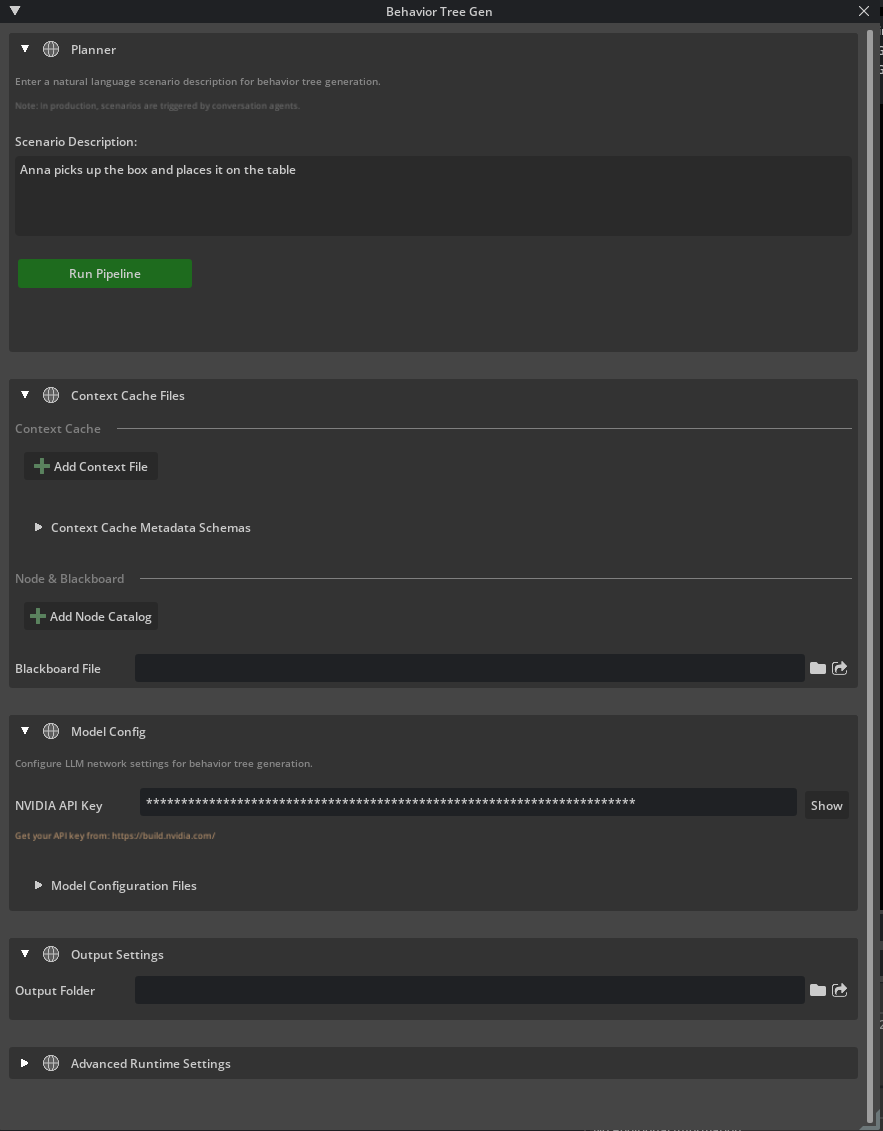
The Behavior Tree Gen window lets you review input files, set output and runtime options, enter a natural-language scenario, and run the pipeline.
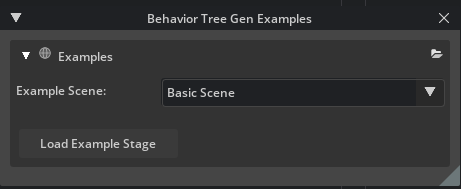
The examples window helps you load bundled demo stages, such as
simpleandwarehouse.
The bridge connects scene and cache data to the runtime so actor and object context, node catalogs, blackboard data, and model configuration files are available to the pipeline.
The bridge tracks file snapshots so unchanged runs can reuse the loaded workspace and prepared runtime instead of rebuilding everything from scratch.
Supported Workflows#
Behavior tree generation supports both of the following workflows:
Interactive testing and demos inside Kit, where you want a UI-driven workflow.
Scripted usage, where the same flow is called directly from Python APIs.
Workflow Overview#
A typical UI session starts from the examples window or from manually selected input files. The examples flow is the fastest way to begin because it loads a sample stage and pre-fills the workflow panels, while manual usage lets you point the pipeline at your own context, catalog, schema, and model configuration files.
After the inputs are available, use the Behavior Tree Gen window to review the loaded files, choose the output location, provide a valid NVIDIA API key, and enter the natural-language scenario that should be converted into behavior tree output.
For the full step-by-step UI flow, expected outputs, and example scenario, review Example Walkthrough.
Core API#
omni.ai.behavior_tree_gen.core provides the reusable pipeline used by both the UI and Python
callers. Its public API intentionally exposes setup_workspace(...),
prepare_runtime(...), and generate_behavior_tree(...) for the same workflow used by the
bridge UI.
For a tutorial on authoring context files and metadata schemas, refer to Context Files and Metadata Schemas. For the full API sequence and script example, refer to Using the API Functions.
Detailed Guides#
For more detailed guidance on the workflow, schema-based context authoring, required inputs, example usage, and API sequence, refer to the following pages:
Terminology#
omni.ai.behavior_tree_gen.bridge
The bridge extension provides the Kit and Omniverse user experience for behavior tree generation. It exposes the UI windows, example loaders, and pipeline execution entry points used by interactive workflows.
omni.ai.behavior_tree_gen.core
The core extension provides the reusable pipeline and public API used to prepare runtime state and generate behavior tree output from natural-language scenarios.
PlannerSession
PlannerSession is the reusable workspace state returned by setup_workspace(...). The
same session can be reused across runs when the tracked workflow inputs do not change.