


Behavior Tree Generation#
The behavior tree generation workflow is packaged under the omni.ai.behavior_tree_gen namespace.
omni.ai.behavior_tree_gen.bridge provides the Kit UI, and
omni.ai.behavior_tree_gen.core provides the reusable scripted API that turns natural-language
scenarios into behavior tree outputs.
Before using this workflow, read What Is Isaac Sim? to learn about Isaac Sim and follow Installation to install Isaac Sim.
Enable Extensions#
Follow the Omniverse Extension Manager guide to enable
omni.ai.behavior_tree_gen.bridge. The bridge loadsomni.ai.behavior_tree_gen.coreas a dependency.Open Behavior Tree Gen from Tools > Behavior Tree Gen.
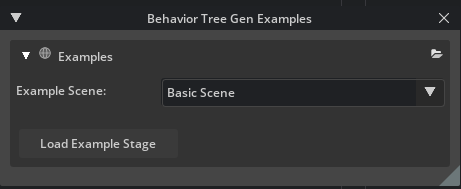
Optional: open the examples window from Window > Examples > Behavior Tree Gen Examples to load the bundled
simpleorwarehousescenes and prefill the main workflow window.
Note
The workflow expects scene context files, node catalogs, model configuration files, a writable
output directory, and reachable chat and embedding model endpoints before a generation run can
succeed. Endpoint credentials are read from the app environment (for example NVIDIA_API_KEY
for NVIDIA-hosted models); local model servers need no token. Refer to
Model configuration and availability for details.
What the Bridge Does#
omni.ai.behavior_tree_gen.bridge integrates the core pipeline with the Kit user experience.
The Behavior Tree Gen window lets you review input files, set output and runtime options, enter a natural-language scenario, and run the pipeline.
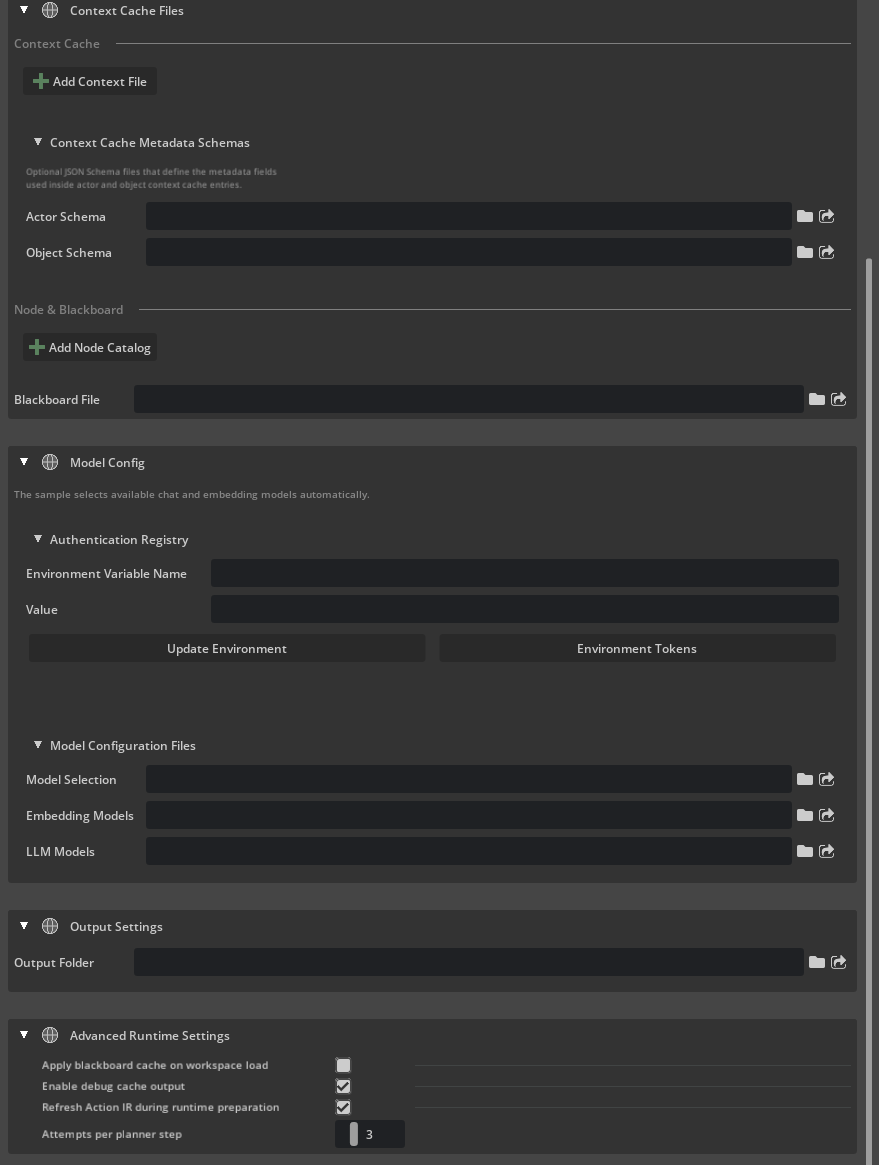
The window is organized into collapsible panels, from top to bottom:
Panel |
Contents |
|---|---|
Planner |
The Scenario Description field for the natural-language scenario, the Run Pipeline button, and a status line. Run Pipeline loads the workspace and prepares the runtime when needed, then generates the behavior tree. The status names the chat and embedding models in use and the current attempt limit. |
Context Cache Files |
Context Cache: Add Context File adds actor and object context JSON files. Context Cache Metadata Schemas: optional Actor Schema and Object Schema JSON Schema files that define the metadata fields used in the context entries. Node & Blackboard: Add Node Catalog adds node catalog JSON files, and Blackboard File selects optional blackboard variable definitions. |
Model Config |
Authentication Registry: Environment Variable Name, a masked Value, Update Environment to set the token in the running app, and Environment Tokens to review which variables are set. Tokens are never saved to files or settings. Model Configuration Files: Model Selection, Embedding Models, and LLM Models JSON files. Refer to Model configuration and availability. |
Output Settings |
Output Folder, where generated behavior trees and cache data are written. |
Advanced Runtime Settings |
|
Each file field has a folder button to browse for the file and a locate button that shows the current file in the Content browser.
The examples window helps you load bundled demo stages, such as
simpleandwarehouse.
The bridge connects scene and cache data to the runtime so actor and object context, node catalogs, blackboard data, and model configuration files are available to the pipeline.
The bridge tracks file snapshots so unchanged runs can reuse the loaded workspace and prepared runtime instead of rebuilding everything from scratch.
Supported Workflows#
Behavior tree generation supports both of the following workflows:
Interactive testing and demos inside Kit, where you want a UI-driven workflow.
Scripted usage, where the same flow is called directly from Python APIs.
Workflow Overview#
A typical UI session starts from the examples window or from manually selected input files. The examples flow is the fastest way to begin because it loads a sample stage and pre-fills the workflow panels, while manual usage lets you point the pipeline at your own context, catalog, schema, and model configuration files.
After the inputs are available, use the Behavior Tree Gen window to review the loaded files, choose the output location, confirm the model configuration and endpoint credentials, and enter the natural-language scenario that should be converted into behavior tree output.
For the full step-by-step UI flow, expected outputs, and example scenario, review Example Walkthrough.
Core API#
omni.ai.behavior_tree_gen.core provides the reusable pipeline used by both the UI and Python
callers. Its public API intentionally exposes setup_workspace(...),
prepare_runtime(...), and generate_behavior_tree(...) for the same workflow used by the
bridge UI.
For a tutorial on authoring context files and metadata schemas, refer to Context Files and Metadata Schemas. For the full API sequence and script example, refer to Using the API Functions.
Detailed Guides#
For more detailed guidance on the workflow, schema-based context authoring, required inputs, example usage, and API sequence, refer to the following pages:
Terminology#
omni.ai.behavior_tree_gen.bridge
The bridge extension provides the Kit and Omniverse user experience for behavior tree generation. It exposes the UI windows, example loaders, and pipeline execution entry points used by interactive workflows.
omni.ai.behavior_tree_gen.core
The core extension provides the reusable pipeline and public API used to prepare runtime state and generate behavior tree output from natural-language scenarios.
PlannerSession
PlannerSession is the reusable workspace state returned by setup_workspace(...). The
same session can be reused across runs when the tracked workflow inputs do not change.