


Chat IRO: Natural Language Interface for Isaac Sim Replicator Object#
Vision-language and scene-generation workflows often require users to hand‑write YAML configuration files for Isaacsim.replicator.object (IRO). This can be error‑prone and slow, especially for complex layouts, harmonizers, physics setups, and camera rigs.
Chat IRO is a natural‑language interface that converts plain English
descriptions into executable IRO YAML configurations and runs them directly
inside Isaac Sim. It sits on top of the IRO extension and automates
configuration authoring, validation, and execution.
Chat IRO has the following features:
Convert English descriptions into IRO YAML scenes.
Use a Retrieval‑Augmented Generation (RAG) system, indexed over the bundled IRO example configurations, to improve correctness and reuse best practices.
Validate generated YAML for syntax and common structural issues before execution.
Preview the generated scene immediately in the Isaac Sim viewport.
Save and reload configuration files for iterative workflows.
Run on the bundled NVIDIA‑hosted model, or point Chat IRO at any OpenAI‑compatible endpoint you control.
Workflow#
Chat IRO uses the following workflow to generate scenes:
You type a natural‑language request such as
Create a scene with 10 random size and color cubesinto the Chat IRO window.The extension optionally queries its RAG index of existing IRO YAML files and injects relevant examples into the LLM context.
The LLM generates a candidate YAML configuration for
isaacsim.replicator.object.Chat IRO validates the YAML, fixes common issues, and executes it through IRO to create or update the scene.
The resulting synthetic scene is rendered in the viewport. You can iteratively refine the configuration by sending follow‑up prompts.
Prerequisites#
Before using Chat IRO, ensure the following requirements are met:
isaacsim.replicator.object.uiextension enabledA supported operating system (Linux is the primary platform; Windows is experimental).
An NVIDIA GPU with CUDA support (recommended).
At least 8 GB of RAM (16 GB or more is recommended for large scenes).
The
omni.ai.langchain.agent.chat_iroextension enabled.A valid NVIDIA API key for LLM access.
Note
The LLM features require a valid NVIDIA API key and sufficient credits. Visit the NVIDIA API portal to obtain a key and manage credits. See the NVIDIA API reference page for more details.
Note
The chat model and the RAG embedding model authenticate separately. If you replace the bundled model with a custom endpoint, that endpoint uses its own credential, but retrieval still needs an NVIDIA key because the embedding model is NVIDIA‑hosted. Without one, Chat IRO still generates YAML, only without retrieved examples.
Enable Chat IRO Extension#
Follow the Omniverse Extension Manager guide to enable the
omni.ai.langchain.agent.chat_iroextension.Launch Isaac Sim and open the Extension Manager if it is not already open:
In the main menu, select Window > Extensions.
Search for
Chat IRO.Enable the extension and optionally enable AUTOLOAD so it is loaded automatically on future launches.
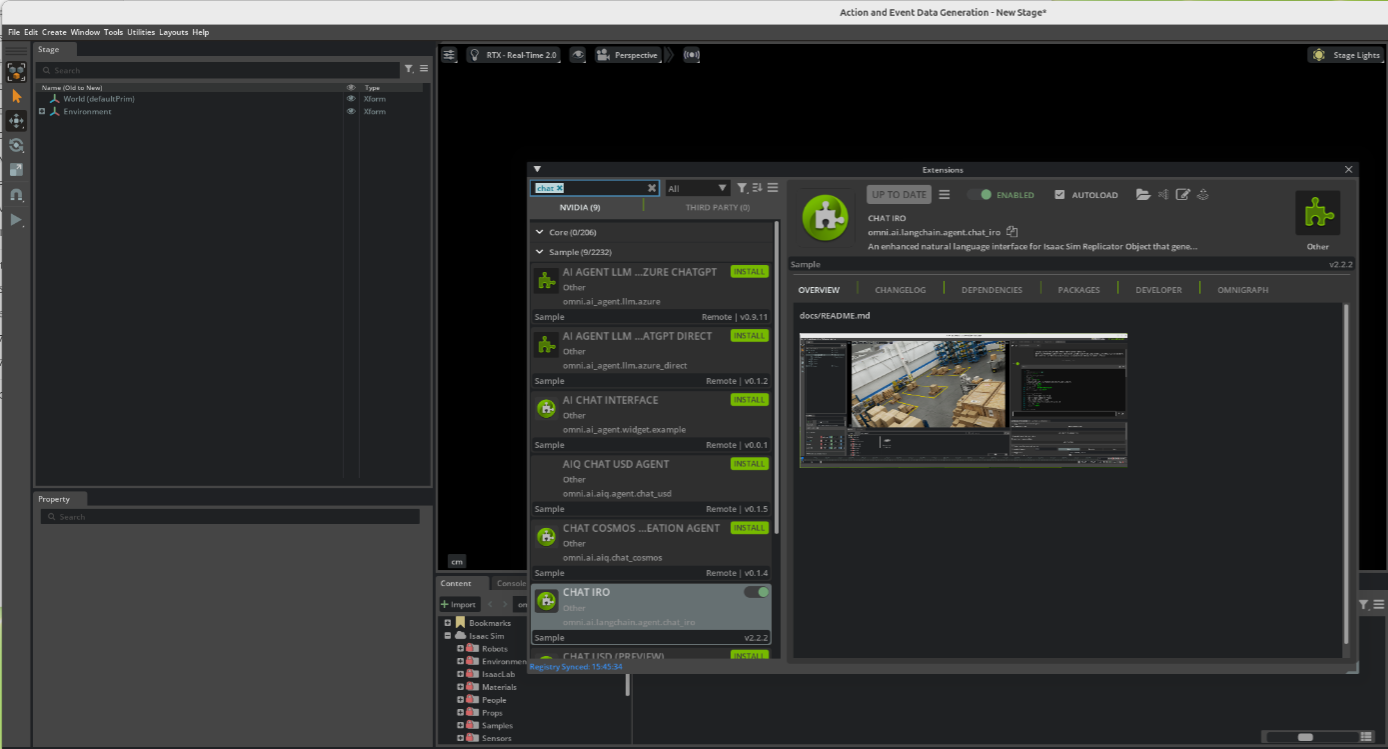
Configure the NVIDIA API key by setting it as an environment variable.
Linux/macOS
# Set API key for the current shell session
export NVIDIA_API_KEY="nvapi-YOUR-KEY-HERE"

# Make the setting persistent (for bash)
echo 'export NVIDIA_API_KEY="nvapi-YOUR-KEY-HERE"' >> ~/.bashrc
source ~/.bashrc
Windows (Command Prompt)
REM Set API key for the current Command Prompt session
set NVIDIA_API_KEY=nvapi-YOUR-KEY-HERE

REM To make the setting persistent, add the variable in
REM System Properties > Environment Variables.
Note
If LLM authentication fails, verify that NVIDIA_API_KEY is set
and has remaining credits.
Isaac Sim reads the variable from the environment it was launched in, so exporting the key in a terminal has no effect on an already running session. Export it first and then start Isaac Sim from that same shell, or add the export to your shell startup file.
The nvidia_api_key entry in extension.toml ships with a placeholder
value, which Chat IRO deliberately treats as “not set”. Leaving it untouched
is safe, and prefer the environment variable over editing that file.
Accessing the Chat IRO Panel#
Once the extension is enabled:
Open the main Chat IRO window:
From the menu bar, select Window > Chat IRO.
A dockable Chat IRO panel opens, typically on the right side of the viewport.
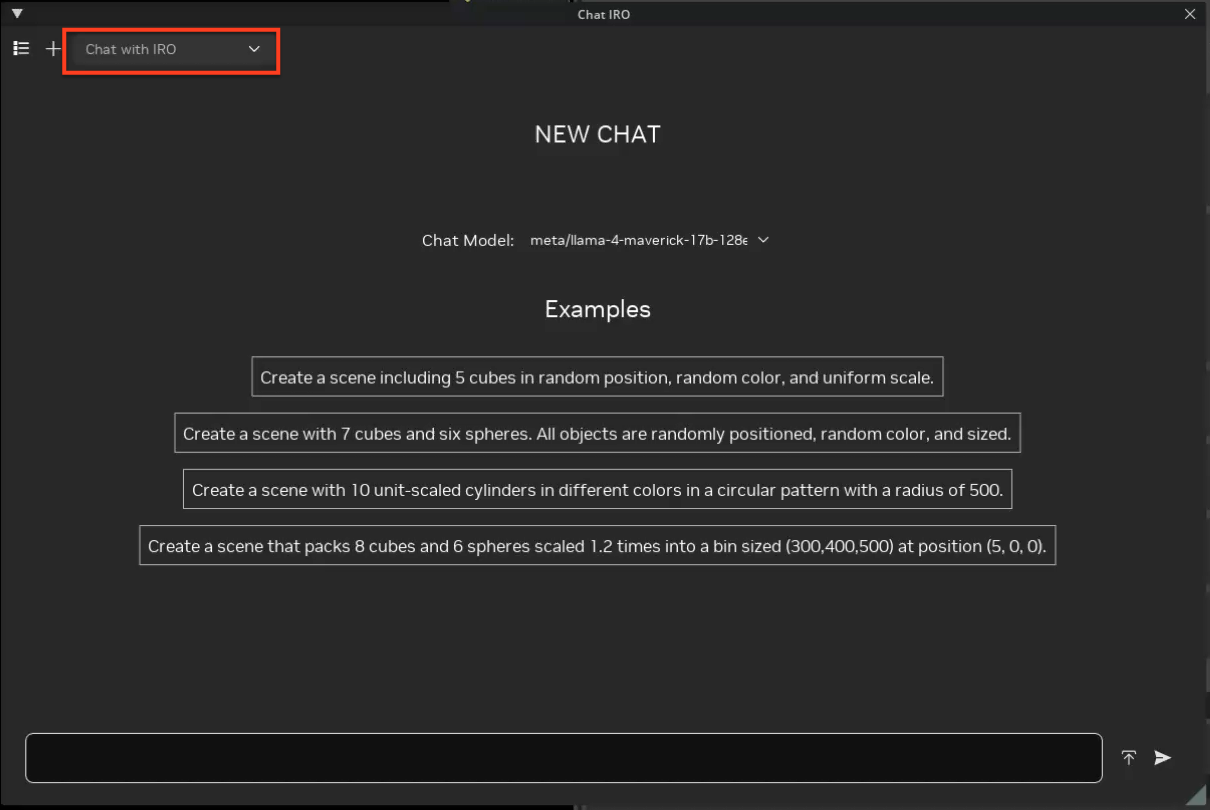
Select a model from the Model drop‑down menu. Chat IRO ships one bundled model, which is preselected as the default:
nvidia/nemotron-3.5-lightning-30b-a3b(1M context, reasoning disabled)
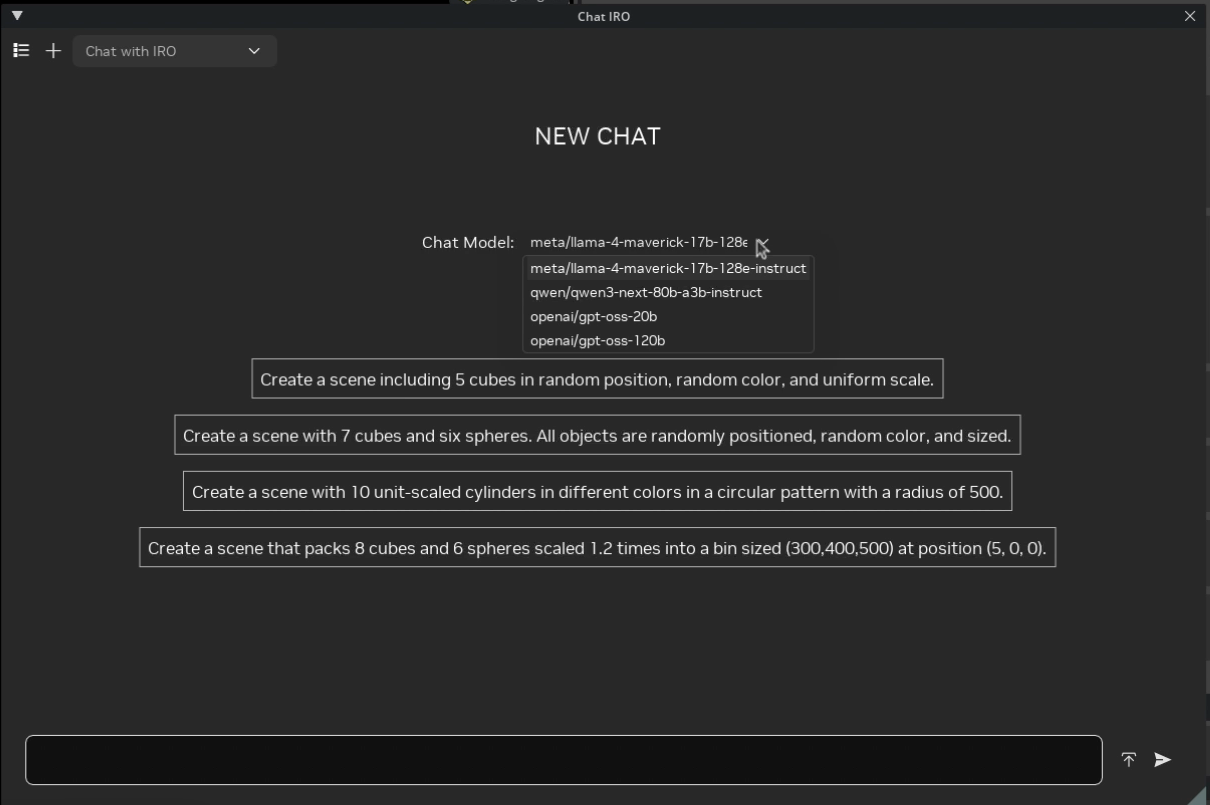
The bundled list is deliberately a single entry. Nemotron 3 Nano and Super, DeepSeek V4 Flash, Gemma 4 31B IT, and both GPT-OSS sizes were evaluated and dropped, because they answered with prose that contained no extractable YAML. The generator then silently produced nothing. To run any other model, add it as a custom endpoint, where you control the request and can verify the result. See Using Your Own Model Endpoint.
After selecting a model, check the status line in the Chat IRO panel. If you see no errors, the model is ready and the extension is authenticated.
Using Your Own Model Endpoint#
The bundled model is NVIDIA‑hosted, but Chat IRO is not limited to it. Any
OpenAI‑compatible /v1 endpoint can be added to the model drop‑down, which
covers OpenAI, Gemini, Anthropic, OpenRouter, and Azure, as well as local
servers such as Ollama, vLLM, and LM Studio. Self‑hosted NIMs can instead use
api_format = "nvidia".
The recommended route is a JSON file that you own, so it survives extension
upgrades. Chat IRO reads ~/.chat_iro/custom_models.json by default:
{
  "models": [
    {
      "name": "gpt-4o",
      "model": "gpt-4o",
      "base_url": "https://api.openai.com/v1",
      "api_key_env": "OPENAI_API_KEY",
      "max_input_tokens": 128000
    },
    {
      "name": "local-ollama",
      "model": "qwen3-coder:30b",
      "base_url": "http://localhost:11434/v1",
      "max_input_tokens": 256000
    }
  ]
}
Export the referenced keys, then restart Isaac Sim:
export OPENAI_API_KEY=sk-...
For a single endpoint you can skip the file entirely and use environment variables alone:
export CHAT_IRO_CUSTOM_MODEL_NAME="my-gpt"
export CHAT_IRO_CUSTOM_MODEL_BASE_URL="https://api.openai.com/v1"
export CHAT_IRO_CUSTOM_MODEL_MODEL="gpt-4o"
export CHAT_IRO_CUSTOM_MODEL_API_KEY_ENV="OPENAI_API_KEY"
Endpoints can also be declared inline in extension.toml:
[[settings.exts."omni.ai.langchain.agent.chat_iro".custom_models]]
name = "gemini-2.5-pro"
model = "gemini-2.5-pro"
base_url = "https://generativelanguage.googleapis.com/v1beta/openai/"
api_key_env = "GEMINI_API_KEY"
max_input_tokens = 1000000
The three sources are merged, and later sources win: extension.toml tables
first, then the JSON file (custom_models_file or
CHAT_IRO_CUSTOM_MODELS_FILE), then the CHAT_IRO_CUSTOM_MODEL_*
variables.
Keep the following in mind:
Only
nameandbase_urlare required.modeldefaults toname.Prefer
api_key_envover an inlineapi_key, so the credential stays out of the configuration file.max_input_tokensis the context window advertised to Chat IRO. The standing prompt plus retrieved YAML needs roughly 32k, so do not go below that.Custom entries are registered before the bundled model, so reusing the bundled name redirects it to your own host.
An endpoint with no resolvable key receives a placeholder, which only works for local servers that ignore authentication.
API Keys for the Embedding Model#
Embeddings are always NVIDIA‑hosted (nvidia/nemotron-3-embed-1b), so
retrieval needs an NVIDIA key even when chat runs on OpenAI, Gemini, or a local
server. The key is read from NVIDIA_API_KEY by default. If yours lives
under a different name, name that variable:
[settings.exts."omni.ai.langchain.agent.chat_iro"]
embedding_api_key_env = "MY_TEAM_NVIDIA_KEY"
The equivalent environment override is CHAT_IRO_EMBEDDING_API_KEY_ENV.
Only the variable name belongs in the configuration; the key itself stays in
the environment. Naming a variable is treated as deliberate, so if it turns out
to be unset, Chat IRO does not quietly fall back to NVIDIA_API_KEY.
Instead it logs that retrieval is disabled and which variable it looked for.
Logs name the source, never the value.
Using Chat IRO#
Chat IRO can be used in the following ways:
Using the UI Panel#
To create and preview scenes using the Chat IRO panel:
In the Chat IRO input box, type a prompt such as:
Create a scene with 7 cubes and 6 spheres. All objects are randomly positioned,
random color, and sized.
Press Enter to send the prompt.
Chat IRO retrieves relevant YAML patterns from its RAG index, generates an IRO configuration, validates it, and executes it in Isaac Sim.
Inspect the viewport to verify that the generated scene matches the requested behavior (object counts, colors, positioning, lighting, and camera placement).
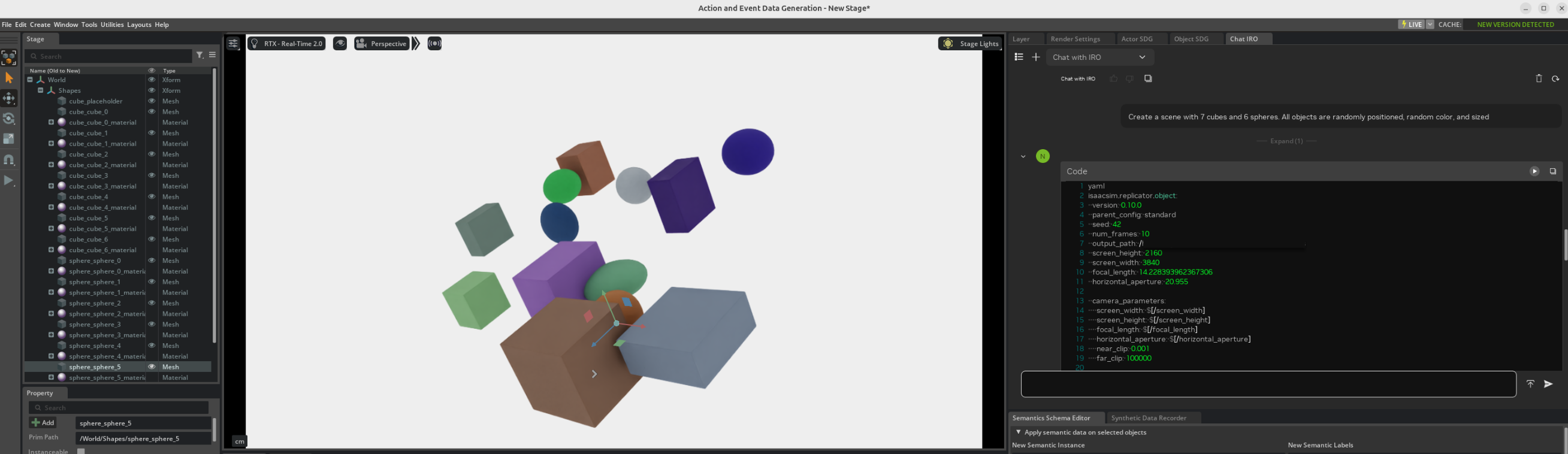
Refine the scene with follow‑up prompts that modify the existing configuration. For example:
Make all cubes blue and add rigidbody physics
The extension updates the YAML configuration in place, reapplies it, and refreshes the viewport.
By default, configuration files are automatically stored in a directory similar to:
~/Documents/ChatIRO_Results/config_files/my_scene.yamlYou can also specify a custom path by asking Chat IRO to save the file to a different location.
Generating New IRO Scenes#
Chat IRO is optimized for generating complete IRO scenes from concise, well‑specified prompts. Good prompts include:
Create 20 purple cubes arranged in a circular formation with radius 900 at Y = 50.Pack 8 cubes and 6 spheres scaled 1.2x into a bin sized (300, 400, 500) at (5, 0, 0).
For example, the following prompt:
Create a scene with 7 cubes and 6 spheres. All objects are randomly positioned,
random color, and sized.
will typically produce an IRO configuration similar to:
isaacsim.replicator.object:
  version: 0.11.15
  parent_config: standard
  seed: 42
  num_frames: 10
  output_path: /Documents/ChatIRO_Results
  screen_height: 2160
  screen_width: 3840
  focal_length: 14.228393962367306
  horizontal_aperture: 20.955

  camera_parameters:
    screen_width: $[/screen_width]
    screen_height: $[/screen_height]
    focal_length: $[/focal_length]
    horizontal_aperture: $[/horizontal_aperture]
    near_clip: 0.001
    far_clip: 100000

  cube:
    count: 7
    type: geometry
    subtype: cube
    tracked: true
    color:
      distribution_type: range
      start:
      - 0
      - 0
      - 0
      end:
      - 1
      - 1
      - 1
    transform_operators:
    - rotateX: 0
    - rotateY: 0
    - rotateZ: 0
    - translate:
        distribution_type: range
        start:
        - -500
        - 50
        - -500
        end:
        - 500
        - 50
        - 500
    - scale:
        distribution_type: range
        start:
        - 0.5
        - 0.5
        - 0.5
        end:
        - 1.5
        - 1.5
        - 1.5

  sphere:
    count: 6
    type: geometry
    subtype: sphere
    tracked: true
    color:
      distribution_type: range
      start:
      - 0
      - 0
      - 0
      end:
      - 1
      - 1
      - 1
    transform_operators:
    - rotateX: 0
    - rotateY: 0
    - rotateZ: 0
    - translate:
        distribution_type: range
        start:
        - -500
        - 50
        - -500
        end:
        - 500
        - 50
        - 500
    - scale:
        distribution_type: range
        start:
        - 0.5
        - 0.5
        - 0.5
        end:
        - 1.5
        - 1.5
        - 1.5

  default_camera:
    camera_parameters: $[/camera_parameters]
    transform_operators:
    - rotateX: -30
    - rotateY: 45
    - rotateZ: 0
    - translate:
      - 0
      - 0
      - 1000
    - scale:
      - 1
      - 1
      - 1
    type: camera

  dome_light:
    intensity: 1500
    subtype: dome
    transform_operators:
    - rotateX: 270
    type: light
Note
The version field is not something you need to track. Chat IRO stamps it
to match the isaacsim.replicator.object extension that is actually
installed, so a generated configuration stays loadable after IRO is
upgraded. The value shown above is whatever that version happens to be.
More Prompt Examples#
Use these prompts to explore richer scenes:
Bin packing
Create a scene that packs 8 spheres and 10 cubes scaled 1.2 times
into a bin sized (300, 400, 500) at position (5, 0, 0)
Grid layout
Create 25 cubes arranged in a 5x5 grid with spacing of 100 units
Physics
Create 20 spheres with rigidbody physics falling from height 500
onto a ground plane
Pyramid stacking
Stack 15 cubes of size 50 into a pyramid centered at the origin
Applied force
Create a sphere at the origin and apply an upward thrust force of 5000
for 2 seconds of simulation
Per‑object physics materials
Create 6 cubes in a row on a ground plane, give each a different friction
coefficient, and launch them all with the same initial velocity along X
Physics scenes are driven by the simulation step, so they need
enable_physics_simulation = true. Per‑object properties such as friction,
restitution, and initial velocity are set on the object itself, and an applied
force also needs a simulation duration long enough for the motion to develop.
Objects positioned by a harmonizer take the transform operator that matches the harmonizer’s return type:
bin_packreturns 4x4 matrices, so it requirestransform:.pyramidreturns 3‑vectors, so it usestranslate:.A
pitchoflocal_aabbmeasures the bounding box of a loaded mesh, so it applies to meshes only. Primitives need an explicit numeric pitch.
Note
Complex mathematical layouts (for example, circular or grid‑based arrangements) may require a few iterations. If object placement does not match expectations, use a follow‑up prompt that focuses only on correcting the formulas or spacing.
Using Existing USD Scenes#
You can also reference existing USD stages or assets in your prompts:
Create a warehouse stage
Create a warehouse environment with the following settings:

WAREHOUSE:
USD: /home/user/Assets/warehouse.usd
Apply collision physics.
Scale the warehouse to 100 times its original size.
Rotate the warehouse -90 degrees on the X-axis.

CAMERA:
Position randomly between 1800-2000 units away on Z-axis.
Rotate randomly -180 to 180 degrees on Y-axis.
Tilt -30 degrees on X-axis for overhead view.
Set the number of frames to 30.
Note
Prompts that reference existing USD stages or assets require those USD files (and their dependencies) to be available locally. Chat IRO loads the stage and assets into the scene so it can reference them in the generated YAML configuration. The configuration options shown in the examples above are illustrative; you can use any other settings supported by the IRO extension.
Editing Existing IRO YAML Files#
Chat IRO can also load and modify YAML configuration files that you have created manually or with other tools.
Typical workflow:
Ask Chat IRO to load a file:
load /home/user/Documents/ChatIRO_Results/config_files/my_scene.yaml
Inspect the generated scene in the viewport.
Apply edits using natural language, such as:
Add 5 more cubes with random colors.

Increase dome light intensity to 3000.

Add a rotating camera that orbits the scene 360 degrees.
Save the updated configuration:
save /absolute/path/to/my_scene_v2.yaml
Behind the scenes, Chat IRO reuses the same validation and execution pipeline used for newly generated configurations.
Managing Output Files and Directories#
By default, Chat IRO saves generated configuration files and simulation outputs to a structured directory under your home folder.
Default Output Location#
All Chat IRO outputs are organized in:
~/Documents/ChatIRO_Results/
├── config_files/              # YAML configuration files
├── simulation_results/        # IRO simulation outputs
└── .cache/                    # Temporary files (hidden)
The
config_files/directory contains YAML files that define scenes.The
simulation_results/directory contains rendered images, sensor data, and other outputs generated when executing the YAML configurations.The
.cache/directory stores temporary processing files.
Note
If ~/Documents/ChatIRO_Results/ does not exist, Chat IRO creates it
automatically on first use.
Changing the Output Directory#
You can change the default output directory with an environment variable:
# Linux/macOS
export CHAT_IRO_OUTPUT_DIR="~/MyProjects/IRO_Results"

# To make it persistent, add to your shell startup file, for example:
echo 'export CHAT_IRO_OUTPUT_DIR="~/MyProjects/IRO_Results"' >> ~/.bashrc
source ~/.bashrc
REM Windows (Command Prompt)
set CHAT_IRO_OUTPUT_DIR=C:\Users\YourName\IRO_Results

REM Add to System Environment Variables for persistence
Note
Advanced users can also configure the default output directory in the Chat IRO extension settings or via the Python APIs that ship with the extension.
Natural‑Language File Commands#
Chat IRO understands simple text commands for loading, saving, and running configurations:
Loading files
load /path/to/my_scene.yaml
Saving files
save /absolute/path/to/my_warehouse_scene.yaml

save this as /absolute/path/to/production_config.yaml
Simulating with specific parameters
simulate with seed 123
Note
For reliable behavior, always specify an absolute path when saving, for example:
save /absolute/path/to/my_scene.yaml. Using only a file name (for example,
save my_scene.yaml) is not recommended because the save location can vary
depending on your environment and configuration.
Chat IRO RAG Configuration#
Chat IRO includes a Retrieval‑Augmented Generation system that provides deep knowledge of existing IRO scenes and best‑practice configurations.
The index ships with the extension and is loaded from disk. It holds 426
vectors covering 63 example YAML configurations, embedded with
nvidia/nemotron-3-embed-1b. Nothing is downloaded at runtime.
The behavior of the RAG system can be customized in extension.toml:
[settings.exts."omni.ai.langchain.agent.chat_iro"]
enable_rag_system = true           # Enable/disable RAG (default: true)
rag_context_mode = "targeted"      # "targeted" (default) or "full_legacy"
rag_yaml_top_k = 2                 # Complete YAML files to inject
rag_yaml_max_tokens = 6000         # Token budget for retrieved YAML
rag_rules_max_tokens = 8000        # Token budget for rule slices
rag_expand_to_parent_file = true   # Expand chunk hits to the whole file

# Optional multi‑query decomposition and cross‑encoder reranking
enable_multi_query_rag = false
max_sub_queries = 3
enable_rag_reranking = false
reranker_model = "BAAI/bge-reranker-large"
In the default targeted mode, the context assembled for each prompt is a
small standing core, plus rule slices selected from the request’s intent, plus
one or two complete example configurations. Retrieval works on the whole
index and behaves as follows:
A chunk that matches part of a file is expanded to the entire file, so the model sees a coherent, runnable configuration rather than a fragment.
Examples whose structure cannot satisfy the request are dropped by schema. A request for primitives will not be shown mesh examples that depend on
usd_pathorsubtype: mesh, and the reverse also holds.The token budgets above cap what is injected after ranking.
Set rag_context_mode = "full_legacy" to restore the previous behavior, in
which the technical and example markdown was injected on every request. This is
worth trying only if generation quality regresses.
Note
Enabling cross‑encoder reranking typically improves retrieval accuracy by
10–30% at the cost of additional latency (around 100–200 ms per request).
For simple prompts or low‑latency environments, keep
enable_rag_reranking = false.
Note
The index stores embeddings of the example text as it was at build time, so editing or adding an example makes no difference until the index is rebuilt. Rebuilding is a developer task that requires an embedding key and must run under Isaac Sim’s own interpreter; the extension README documents the procedure.
Best Practices#
Chat IRO relies on LLMs that interpret natural language. Clear, specific prompts lead to more reliable IRO configurations.
Recommended prompting guidelines:
Specify concrete numbers rather than vague terms.
Good:
Create 20 cubes in a circular formation with radius 900 at Y = 50.Avoid:
Create some objects in a circle.Explicitly describe sizes, positions, and physics requirements.
Build scenes iteratively and validate each step in the viewport.
Save working configurations frequently and version them as you refine.
If the generated YAML does not execute or the scene appears empty:
Ask Chat IRO to regenerate with corrected structure, for example:
Regenerate the configuration using valid YAML syntax and complete
all missing parameters.
Focus corrective prompts on specific errors (spacing, rotations, counts, physics flags) instead of rewriting the entire scene.
When the Model Gets It Wrong#
Chat IRO generates its configurations with an LLM, so the same prompt does not always produce the same YAML. A model may quietly drop one clause of a request, apply a value once where you asked for it to vary, wrap its answer in markdown it was told to omit, or (rarely) fall into repeating the same fragment until it runs out of tokens. None of these mean the extension is misconfigured, and none require a restart. They are a normal property of generative models, and the remedy is almost always another prompt.
Treat the following as an escalation ladder and stop as soon as the scene is correct. Each step costs more than the one before it.
Correct it with a follow‑up prompt#
Stay in the same session and name only what is wrong. The model still has the YAML it just produced in context, so a short correction is usually enough and preserves everything that was already right.
If a clause was ignored, for example every cube received the same color when you asked for random colors:
Give each cube its own randomly generated color. Do not reuse one shared
color for all of them.
If the reply contained explanation or markdown instead of a configuration:
Return only the IRO YAML configuration. No explanation, no commentary, and
no markdown code fences.
If one property is wrong but the rest of the scene is good, say so explicitly, so the model edits rather than regenerates:
Keep the current positions and scales. Only change the rotations so each
cube is rotated randomly about Z.
Restate the request in full#
If two or three follow‑ups do not converge, the conversation itself may be steering the model toward its earlier mistake. Send the original request again as a single self‑contained prompt, with the missed requirement stated in concrete terms rather than as a correction:
Create 5 cubes at random positions within a 500-unit cube, each with an
independently randomized color, all at uniform scale 100.
Start a new session#
Reset when the output stops being merely wrong and starts being incoherent: repeated or looping text, fragments of unrelated scenes, or answers that ignore your last several messages. At that point the context is working against you and further follow‑ups tend to make it worse. Use the \(+\) button described under Session Management and open with a single, fully specified prompt.
Long sessions drift for the same reason. If you have been iterating on one scene for a while, starting fresh with the current YAML pasted in as the starting point is often faster than continuing to correct it.
Split the scene into stages#
Complex scenes fail more often than simple ones, and they fail in ways that are harder to correct. Build them in stages (objects first, then physics, then cameras and lighting), validating each stage in the viewport before adding the next. A model that reliably mishandles one large prompt will often handle the same scene correctly as three small ones. This also keeps each reply well clear of the response‑length limit, which matters because a configuration truncated mid‑YAML cannot be parsed.
Try a different model#
If a specific requirement fails repeatedly across fresh sessions and reworded prompts, the bundled model may simply be weak at it. Chat IRO is not limited to the model it ships with: add any OpenAI‑compatible endpoint as described under Using Your Own Model Endpoint and select it from the Model drop‑down. Prefer instruction‑following models, since Chat IRO needs a YAML block it can extract rather than a conversational answer.
Note
Repetition is what separates a model mistake from a defect worth reporting. Intermittent wrong output on a prompt that usually works is model variance, and the ladder above is the remedy. Output that is wrong the same way every time, across new sessions, reworded prompts, and ideally a second model, is a reproducible bug. Capture the prompt, the generated YAML, and the session log before filing it.
Troubleshooting#
Common issues and remedies:
LLM authentication failed
Symptom: Error message about missing or invalid API key; no YAML generated.
Action:
Confirm that your account has remaining credits.
Verify that
NVIDIA_API_KEYis set in the environment Isaac Sim was launched from. Exporting it in another terminal does not reach a running session, which is the most common cause of this error when the key looks correct.Note that the placeholder
nvidia_api_keyinextension.tomlcounts as unset, so replacing it is not a fix by itself.If chat runs on a custom endpoint, check the variable named by that endpoint’s
api_key_envinstead.
No scene is rendered
Symptom: Chat IRO responds, but the viewport remains empty.
Action:
Inspect the generated YAML in the Chat IRO window.
Look for error messages in the Isaac Sim console or logs.
Try a simple prompt such as
Create 5 cubesto verify basic behavior.
The model answers in prose and nothing is built
Symptom: A fluent reply that explains a scene, with no YAML block, and no change in the viewport.
Action: Chat IRO can only execute a YAML block it can extract from the reply. When a model answers conversationally, there is nothing to run. This is why only one bundled model ships. If you added a custom endpoint, prefer an instruction‑following model, and restate the prompt to ask explicitly for a complete IRO YAML configuration and nothing else.
Retrieved examples do not match the request
Symptom: The generated configuration borrows structure from an unrelated scene, for example a mesh‑based example for a request about primitives.
Action: Name the object types explicitly in the prompt. Retrieval filters examples by schema, so stating “cubes and spheres” or “USD meshes” steers it. Verify that an embedding key is available, because retrieval is silently skipped without one, leaving the model with the standing prompt alone.
Part of the request is ignored
Symptom: The scene is built and reports no errors, but one clause of the prompt was not applied. For example, every object receives the same color when the prompt asked for random colors, while positions did vary.
Action: Send a follow‑up prompt naming just that requirement, such as
Give each cube its own randomly generated color.The model keeps the rest of the configuration. See When the Model Gets It Wrong for what to try if the follow‑up does not take.
YAML syntax errors
Symptom: Messages such as
Failed to parse YAML, includingfound character '`' that cannot start any tokenwhen the reply begins with a markdown code fence.Action:
Ask Chat IRO to fix the YAML syntax, or to return only the configuration with no markdown fences.
Simplify the prompt and ensure that you request a single, self‑contained configuration. A reply that runs past the model’s response‑length limit is cut off mid‑configuration and cannot be parsed, which is more likely with large scenes.
The reply is repeated or looping text
Symptom: The response contains the same fragment repeated until it stops, and parsing fails on that content.
Action: Start a new session rather than sending follow‑ups; a degenerate response tends to persist while it remains in context. Reopen with a single, fully specified prompt, and if it recurs on the same request, try a different model as described under When the Model Gets It Wrong.
Slow responses
Symptom: Noticeable delay between sending a prompt and receiving an answer.
Action:
Reduce
rag_yaml_top_k, lowerrag_yaml_max_tokens, and keep reranking and multi‑query decomposition disabled inextension.toml.Split very complex scenes into multiple, smaller prompts.
Session Management#
Over very long sessions, the LLM may drift from the original constraints or produce inconsistent configurations.
Resetting is not the first thing to try when a single reply is wrong. A targeted follow‑up prompt usually fixes that while keeping the rest of the scene, and When the Model Gets It Wrong covers when to correct versus when to reset. Start a new session when the output has become incoherent or the conversation has grown long enough to drift.
To reset the conversation:
Click the \(+\) button in the upper‑left corner of the Chat IRO window to start a new session.
Optionally restart Isaac Sim if behavior remains inconsistent.
Begin the new session with a clear instruction such as:
You are a YAML configuration generator for Isaac Sim Replicator Object.
Generate only valid YAML with proper structure. Create a scene with
10 cubes in a grid layout.