


[isaacsim.robot_setup.wizard] Isaac Sim Robot Wizard [Deprecated]#
Warning
Deprecation: Extension deprecated since Isaac Sim 6.0.0. No replacement.
Version: 0.3.1
Overview#
Deprecated since version 6.0.0: This extension is deprecated. No replacement.
**isaacsim.robot_setup.wizard** provides a guided robot setup workflow for importing, organizing, configuring, and saving robots. It presents the process as a multi-step wizard so users can move from an existing robot asset or external robot file to a structured robot USD with hierarchy, colliders, joints, drives, articulation settings, and robot schema data. The wizard focuses on interactive setup through windows, tree views, asset pickers, and validation helpers rather than script-based usage.
Functionality#
The wizard walks users through six main setup steps:
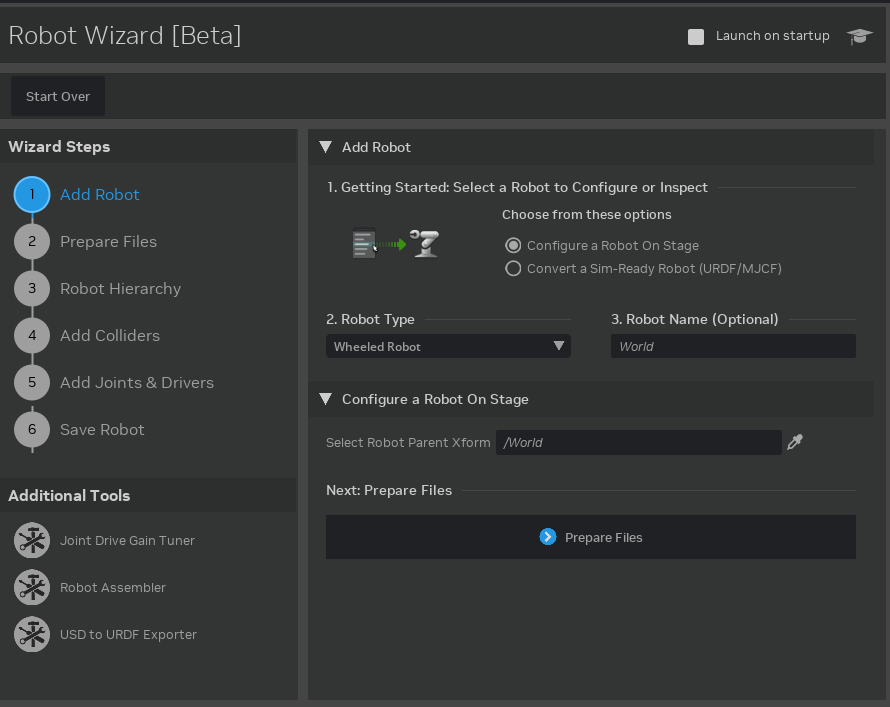
Add Robot Selects the robot source and basic robot type. Users can configure an existing robot in the stage, choose robot templates such as
Manipulator,Gripper,WheeledRobot,Humanoid,Quadruped, orCustomRobot, and provide import inputs such as URDF, MJCF, USD, OBJ, STL, DAE, or FBX files.Robot Hierarchy Lets users reorganize robot meshes into a link-based structure. Users can create links, assign mesh objects to links, copy existing hierarchy, mark reference meshes for parent link alignment, and apply the new hierarchy to the robot.
Add Colliders Lets users define collision geometry for robot parts. The page supports collision approximation options such as convex hull, convex decomposition, box, sphere, capsule, cylinder, triangle mesh, and mesh-based types.
Joints and Drives Lets users create and edit joints between robot links. Users can configure joint type, axis, parent and child bodies, break force, break torque, limits, drive type, max force, target position, target velocity, damping, and stiffness.
Prepare Files Configures the robot name, output folder, stage save behavior, and generated file allocation. The page validates names and write permissions, and shows status indicators for files that will be created, overwritten, or cannot be written.
Save Robot Applies articulation APIs, applies the robot schema, and generates USD outputs. Users can also include minimal environment items such as a ground plane, default light, and physics scene.
UI Components#
RobotWizardWindow#
RobotWizardWindow is the main wizard window. It contains a left progress/navigation panel and a right content panel for the active wizard page. The window also includes links to additional robot setup tools, including Joint Drive Gain Tuner, Robot Assembler, and USD to URDF Exporter.
The window uses a visual progress tracker to show which wizard steps are remaining, active, in progress, or complete. Users can move through pages with step buttons and next-step controls, while progress state is updated as each stage of the workflow is completed.
Splitter#
Splitter provides the two-panel layout used by the wizard. The left panel contains the wizard steps and tool shortcuts, while the right panel contains the active setup page. Users can drag the divider horizontally to resize the left panel, with a minimum width constraint to keep navigation usable.
Asset Pickers#
RobotAssetPicker provides stage-based selection dialogs for choosing robot-related prims. It is used in multiple places, including selecting parent transforms, collider targets, joint parent and child bodies, and articulation roots.
Selection can be filtered by USD schema type and limited to a specific number of targets. This helps users choose valid prims for each operation instead of selecting arbitrary stage content.
Tree Views#
The wizard uses searchable and sortable tree views for collider and joint configuration. These views support placeholder rows for consistent layout, text filtering, column sorting, and editable rows.
The collider tree tracks target parts and collision approximation types. The joint tree tracks joint name, type, axis, drive type, parent body, and child body.
Popup Windows#
Several setup actions use focused popup windows:
AddColliderWindow creates or edits collider entries and lets users pick collider targets from the robot.
CreateJointWindow creates or edits joints and lets users pick parent and child targets from the robot.
Folder and file dialogs are used for selecting robot source files and output folders.
These popup windows keep detailed configuration separate from the main wizard page while still updating the same robot setup state.
Concepts#
RobotRegistry#
RobotRegistry tracks the active robot being configured by the wizard. The setup pages use it to share the selected robot type, link definitions, file paths, save options, hierarchy changes, collider choices, joint definitions, and output paths.
Only one robot instance is tracked at a time. This keeps the wizard focused on a single robot setup workflow from import through save.
Robot Templates#
Robot templates provide starting link structures for common robot categories:
ManipulatorGripperWheeledRobotHumanoidQuadrupedCustomRobot
Each template stores the robot type and default link names. Users can then refine the hierarchy, colliders, joints, and save settings through the wizard pages.
Progress States#
ProgressRegistry manages step state for the wizard. Steps can be marked as remaining, in progress, active, or complete, and the UI updates the progress display when state changes.
This allows the wizard to show where the user is in the workflow and which pages have already been completed.
Workflows#
Importing or Selecting a Robot#
Users start on the Add Robot page by choosing how to provide the robot. The wizard supports existing stage content and external files, with file classification for sim-ready files and 3D model files.
Supported sim-ready extensions include URDF and XML. Supported 3D model extensions include USD, OBJ, STL, DAE, and FBX.
Reorganizing the Robot Hierarchy#
The Robot Hierarchy page is used to create a clean link structure. Users can build a new link hierarchy, assign meshes to links, mark reference meshes for link alignment, and apply the structure.
When the hierarchy is applied, the wizard reorganizes robot content into expected folders such as meshes, visuals, colliders, joints, and materials. It also removes or resets transforms where needed to create a cleaner robot structure.
Adding Physics Colliders#
The Add Colliders page lets users choose which robot parts need collision geometry. Users add collider entries, select target parts, and choose an approximation type.
When colliders are applied, collision APIs and mesh collision settings are added to the corresponding robot parts. Existing collision-related APIs can also be removed when regenerating clean visual or physics variants.
Defining Joints and Drives#
The Joints and Drives page lets users create joints between robot links and configure motion behavior. Joint settings include parent and child bodies, axis, limits, and break thresholds.
Drive settings include drive type, max force, target position, target velocity, damping, and stiffness. Existing joint settings can be read back into the page so users can inspect and adjust them.
Saving the Robot#
The Save Robot page writes the configured robot to USD outputs. It applies articulation APIs to the selected articulation root, applies robot schema data to the robot, links, and joints, and creates variant USD files for different physics configurations.
The generated variant USD can include physics levels such as base, physics, and robot schema configurations. Optional environment content can be added during save.
Configuration#
The extension defines these settings:
persistent.exts."**isaacsim.robot_setup.wizard**".launch_on_startupControls whether the wizard window opens automatically when the application opens.exts."**isaacsim.robot_setup.wizard**".timeoutControls the timeout used while resolving robot wizard settings.
Data Output#
The wizard writes robot configuration into USD files. Save operations can create separate files for base robot content, physics content, robot schema content, and a variant USD that references those layers.
During save, the wizard can apply:
UsdPhysics.ArticulationRootAPIPhysxSchema.PhysxArticulationAPIIsaac robot schema APIs for the robot, links, and joints
Collision APIs and mesh collision approximation settings
Joint APIs and drive settings
This produces robot assets that preserve the configured hierarchy, physics setup, joints, drives, and schema relationships.
Enable Extension#
The extension can be enabled (if not already) in one of the following ways:
Define the next entry as an application argument from a terminal.
APP_SCRIPT.(sh|bat) --enable isaacsim.robot_setup.wizard
Define the next entry under [dependencies] in an experience (.kit) file or an extension configuration (extension.toml) file.
[dependencies]
"isaacsim.robot_setup.wizard" = {}
Open the Window > Extensions menu in a running application instance and search for isaacsim.robot_setup.wizard.
Then, toggle the enable control button if it is not already active.
Extension: {{ extension_version }} |
Documentation Generated: Sep 18, 2026 |
Settings#
exts.”isaacsim.robot_setup.wizard”.timeout#
Default Value: 5
Description: Timeout for resolving the robot wizard settings.
persistent.exts.”isaacsim.robot_setup.wizard”.launch_on_startup#
Default Value: false
Description: Whether to launch the Robot Setup Wizard on startup.