


[isaacsim.asset.importer.heightmap] Heightmap extension for Isaac Sim Occupancy Map#
Version: 2.4.0
Overview#
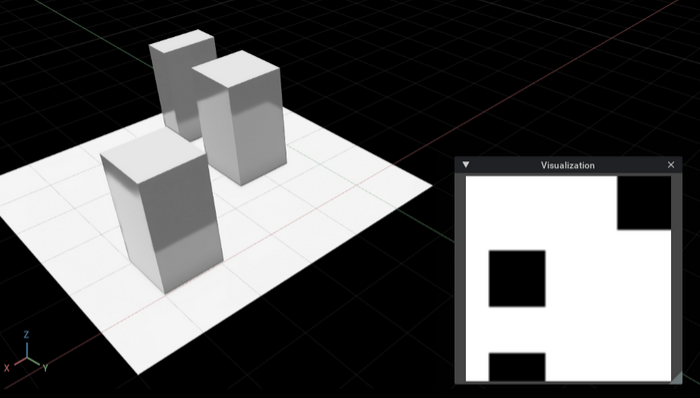
The isaacsim.asset.importer.heightmap extension converts 2D heightmap and occupancy map images into 3D terrain environments in USD format. It reads grayscale images where pixel intensity represents elevation or occupancy, and generates corresponding 3D geometry using USD point instancers for efficient rendering.
Functionality#
Image to terrain conversion: Transforms occupancy map images into 3D environments with a configurable cell size
Occupancy map support: Interprets dark pixels as occupied cells for navigation and obstacle mapping, each becoming a cube of the same fixed height
Efficient rendering: Uses USD point instancers with cube instances for memory-efficient representation of large terrains
Scene setup: Optionally generates a ground plane and lighting for the imported environment
Content protection: Leaves everything already on the stage in place, unless asked to overwrite it
Stage handling#
Add to Current Stage controls where generated terrain lands. It is enabled by default, so pressing Generate adds terrain to the stage you are working in and leaves existing content in place, including that stage’s own meters-per-unit, up-axis, and default prim.
Cell Size is always in meters. On a stage that is not metric it is converted into that stage’s units, so a 1-meter cell is one meter across whatever the scene is authored in. Orientation is not converted — terrain is always built in the XY plane — so a warning is logged when the stage is not Z-up and the generated terrain needs rotating to suit.
Add to Current Stage preserves the stage, but what becomes of prims already sitting at
the paths generation writes to is decided by Overwrite Existing, covered in the next
section. With that option enabled, generation writes to /World/occupancyMap and removes
whatever occupies that path along with anything parented beneath it, which is what lets you
regenerate terrain repeatedly at a different cell size. The one case it refuses is a path
the layer you are editing cannot clear, because the prim is defined somewhere the edit
target does not reach — another layer, a variant, or a muted layer. Switching the edit
target between runs can put a previous generation’s own terrain out of reach this way.
Disabling Add to Current Stage replaces the stage with a new one before generating.
Everything in the current stage is discarded, including unsaved changes, and this is not
undoable — save your work first. A warning is logged whenever the stage is replaced. A
replaced stage is also set to meters and Z-up with /World as its default prim.
Keeping content the importer would overwrite#
Overwrite Existing is disabled by default, so Generate replaces nothing at all.
Instead of stopping, it writes alongside whatever is already on the stage: the terrain goes
to the next free /World/occupancyMap_01, _02, and so on, and a warning names the path it
landed at so you can find it.
That applies to terrain this importer built as much as to content of your own, so each press of Generate adds a terrain rather than replacing the last one. Generating five times gives you five, which is how you build up a stage with more than one — and it means dialing in a setting by regenerating leaves the earlier attempts behind for you to delete.
The ground plane and light are treated differently, because there is no useful second copy of
either. A second plane would sit coincident with the one already there, and a second distant
light would stack onto lighting the scene already has. So when /World/groundPlane or
/World/defaultLight is already taken, nothing is generated there and a warning says so.
The floor you get is therefore the one sized for the first terrain built on that stage.
Enabling Overwrite Existing replaces that content instead. Replacing content of your own logs a warning naming the paths, which is a record rather than a prompt, since it is not undoable. Replacing terrain a previous run generated logs nothing, because there is nothing of yours to lose.
Only the paths a run actually writes to are considered, so turning off Create Ground Plane or Create Lighting takes those two out of the picture entirely. The warning it logs covers whole subtrees: parent a prim of your own anywhere beneath generated terrain and overwriting that terrain is reported as replacing your content, because it is. Anything that cannot be inspected counts as yours rather than as importer output: a deactivated prim, an instance, an unselected variant, or any payload, reference, inherit or specialize authored anywhere in the subtree. An arc counts whether or not its target currently resolves, because one that resolves to nothing today composes content the moment it is found.
With Overwrite Existing enabled, generation refuses to start if one of those paths is defined somewhere removing it would not take effect: another layer, a variant, or a layer that is currently muted — including one that only sublayers in, or references, whatever defines it. The spec cannot be removed at all, so overwriting is impossible — edit the layer that defines it, or move the prim aside. Left disabled, the run steps around the conflict instead, suffixing until it reaches a path no layer defines.
Either setting refuses to start when /World itself hides what is beneath it — because it is
deactivated, instanceable, carries a payload you have not loaded, or has an unselected variant
that could put something at one of the generated paths — either by defining the path, or by
carrying a reference or payload above it, which could contribute anything. A loaded payload
hides nothing, and neither does a variant set that only overrides attributes, so a lookdev or
time-of-day set is no obstacle.
Composition stops there, so the generated paths read as empty whether or not your content sits
at them, and a suffixed path is hidden by exactly the same ancestor. Permission to overwrite is
not permission to overwrite sight unseen, so both settings stop and say which prim to fix:
activate it, load its payload, or select the variant that defines the content.
Ground plane and lighting#
Create Ground Plane and Create Lighting are both enabled by default, since terrain
generated on an empty stage needs a floor and a light to be visible at all. They go to
/World/groundPlane and /World/defaultLight, replacing whatever is there subject to
Overwrite Existing, and the ground plane is sized to the terrain’s XY bounds — or skipped
entirely when the terrain is empty. With Overwrite Existing on, regenerating resizes the
plane to the new terrain; with it off, the plane already on the stage is left as it is. The
ground plane faces the stage’s up-axis, so on a stage that is not Z-up it sits perpendicular
to the terrain.
Turn them off when generating into a scene that already supplies its own. Neither one detects
equivalents at other paths, so a warehouse whose floor is made of tiles rather than a ground
plane prim would still get a plane laid over those tiles, and a scene whose lighting lives
somewhere other than /World/defaultLight would still get a distant light added on top of it.
The HeightmapImporter Python API
never replaces the stage; it writes into whichever stage it is given. Two of its defaults are
the opposite of the UI’s, so that existing scripts keep working:
configure_stage_metadata defaults to True, so a plain create_heightmap(image, cell_scale)
call overwrites that stage’s meters-per-unit, up-axis, and default prim; and
overwrite_existing also defaults to True, so it replaces content at the generated paths
rather than writing alongside it. Pass configure_stage_metadata=False and
overwrite_existing=False for the behavior the panel gives you; each such call then adds a
terrain, and terrain_path on the importer tells you where that call’s terrain ended up.
Enable Extension#
The extension can be enabled (if not already) in one of the following ways:
Define the next entry as an application argument from a terminal.
APP_SCRIPT.(sh|bat) --enable isaacsim.asset.importer.heightmap
Define the next entry under [dependencies] in an experience (.kit) file or an extension configuration (extension.toml) file.
[dependencies]
"isaacsim.asset.importer.heightmap" = {}
Open the Window > Extensions menu in a running application instance and search for isaacsim.asset.importer.heightmap.
Then, toggle the enable control button if it is not already active.