


Visual Noise and Image Degradation Effects Example#
This example reproduces degraded camera footage on the live viewport while a simulation set up by this extension plays, with no data generation required. The effects include sudden low light, white-balance shifts, flicker, and sensor noise. The RTX renderer’s built-in post-processing stack provides the effects and applies them to every rendered frame before display, so they appear in the interactive viewport, in livestreams, and in captured color output alike. Refer to the RTX documentation for what each effect does. This page covers only how to drive the effects in a running simulation.
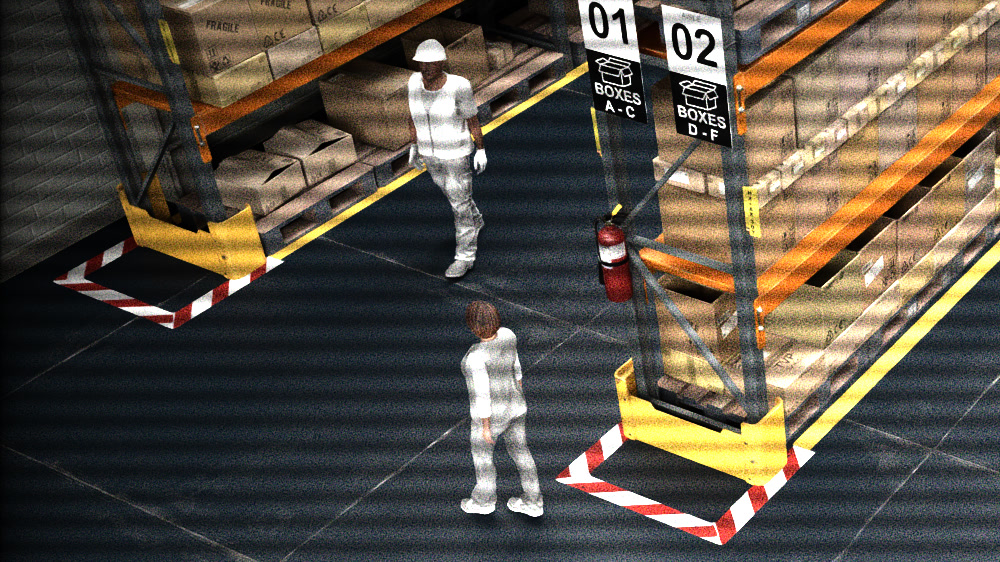
Set up and play a simulation first. The images below show one of the ceiling cameras from the full_pipeline.yaml sample configuration (refer to the Actor Simulation tutorial), first without and then with the effects.

Static Effects#
For a constant look, enable effects while the simulation plays. Use either Render Settings > Post Processing (for example TV Noise & Film Grain) or the Script Editor:
import carb.settings

s = carb.settings.get_settings()
s.set("/rtx/post/tvNoise/enabled", True)
s.set("/rtx/post/tvNoise/enableFilmGrain", True)
s.set("/rtx/post/tvNoise/grainAmount", 0.08)

# To remove the effect again:
# s.set("/rtx/post/tvNoise/enabled", False)
The settings are not persistent. They reset when the application restarts, or immediately when set back as in the commented line above. Values changed in the Render Settings window are additionally saved into the stage if you save it.
Scripted, Time-Varying Effects#
For sudden events such as a light dropping out, an auto-white-balance misstep, or a flicker burst, write the same settings for each frame from an update subscription. The snippet below applies its effects only while the timeline is playing and clears them when the simulation stops. Run it from the Script Editor after Set Up Simulation, or pass it to the app with --exec:
import math

import carb.settings
import omni.kit.app
import omni.timeline

s = carb.settings.get_settings()
timeline = omni.timeline.get_timeline_interface()
frame = 0

def reset_effects():
    s.set("/rtx/post/tvNoise/enabled", False)
    s.set("/rtx/post/colorgrad/enabled", False)
    s.set("/rtx/post/tonemap/filmIso", 100.0)

def on_update(event):
    global frame
    if not timeline.is_playing():
        if frame:
            frame = 0
            reset_effects()  # simulation paused or stopped: remove the effects
        return
    frame += 1
    t = frame / 30.0  # the simulation runs at a fixed 30 FPS
    s.set("/rtx/post/histogram/enabled", False)  # keep auto exposure from counteracting the script
    s.set("/rtx/post/tvNoise/enabled", True)     # constant sensor noise
    s.set("/rtx/post/tvNoise/enableFilmGrain", True)
    s.set("/rtx/post/tvNoise/grainAmount", 0.08)
    # Sudden low-light event for 2 seconds of every 10-second cycle.
    s.set("/rtx/post/tonemap/filmIso", 12.0 if 4.0 <= (t % 10.0) < 6.0 else 100.0)
    # Slow white-balance drift.
    a = 0.015 * math.sin(2.0 * math.pi * t / 8.0)
    s.set("/rtx/post/colorgrad/enabled", True)
    s.set("/rtx/post/colorgrad/gain", [1.0 + a, 1.0, 1.0 - a])

subscription = (
    omni.kit.app.get_app()
    .get_update_event_stream()
    .create_subscription_to_pop(on_update, name="viewport-visual-noise")
)
# The effects run only while the timeline is playing and clear when it stops.
# To remove the script entirely: subscription = None; reset_effects()
Per-Camera Effects#
Post-processing attaches to render products, not to cameras. A UsdRender.Product prim renders exactly one camera, and authoring the settings as USD attributes on a product overrides the global carb values for that product only. The interactive viewport is a single product that follows whichever camera you select in it, which is why the global settings above always apply to whatever the viewport currently shows.
To make the degradation follow the camera selection instead, watch the viewport’s camera and toggle the attributes on the viewport’s product on each change. Enable noise when the viewport shows a degraded camera and disable it when you switch to any other camera:
from pxr import Sdf, Usd

import omni.kit.app
import omni.usd
from omni.kit.viewport.utility import get_active_viewport

DEGRADED_CAMERAS = {"/World/Cameras/ceiling_cameras/Camera"}  # cameras that show noise

viewport = get_active_viewport()
last_camera = None

def set_noise(enabled):
    stage = omni.usd.get_context().get_stage()
    prim = stage.GetPrimAtPath(viewport.render_product_path)
    # Author in the session layer: render products live there, and it keeps these
    # opinions stronger than values synced from previous carb or UI edits.
    with Usd.EditContext(stage, stage.GetSessionLayer()):
        prim.AddAppliedSchema("OmniRtxPostTvNoiseAPI_1")
        prim.CreateAttribute("omni:rtx:post:tvNoise:enabled", Sdf.ValueTypeNames.Bool).Set(enabled)
        prim.CreateAttribute("omni:rtx:post:tvNoise:filmGrain:enabled", Sdf.ValueTypeNames.Bool).Set(True)
        prim.CreateAttribute("omni:rtx:post:tvNoise:filmGrain:amount", Sdf.ValueTypeNames.Float).Set(0.12)

def on_update(event):
    global last_camera
    camera = str(viewport.camera_path)
    if camera != last_camera:
        last_camera = camera
        set_noise(camera in DEGRADED_CAMERAS)

subscription = (
    omni.kit.app.get_app()
    .get_update_event_stream()
    .create_subscription_to_pop(on_update, name="per-camera-visual-noise")
)

def remove_noise():
    """Stop the watcher and clear the effect, regardless of the current camera."""
    global subscription
    subscription = None
    set_noise(False)
Add every camera that should look degraded to DEGRADED_CAMERAS. Call remove_noise() to stop the watcher and clear the effect. Releasing subscription alone is not enough. It freezes whatever was last authored on the product, so unsubscribing while a degraded camera is shown would leave the noise on for every camera. The same attributes, authored statically, scope the per-camera render products created by data generation and by the RTSP CustomWriter streaming pipeline, which are bound one-to-one to their cameras.
Note
The USD attribute names differ slightly from the carb paths (grainAmount becomes filmGrain:amount). The mapping is defined by the omni.usd.schema.render_settings.rtx extension, which also exposes fixedTime:seed attributes for reproducible noise sequences.
Settings Reference#
Every effect group in the RTX Post-Processing documentation maps to a settings group under the /rtx/post/ root:
/rtx/post/tvNoise/*covers TV Noise & Film Grain (grain, scanlines, splotches, vignetting, and flicker toggles)/rtx/post/tonemap/*covers exposure (filmIso,exposureTime)/rtx/post/colorgrad/*and/rtx/post/colorcorr/*cover color and saturation
Chromatic aberration, lens flares, and motion blur live under the same root. Color (float3) values are written from Python as three-element lists.
Keep two details in mind when tuning. The tonemapper responds photographically (ISO 100 to 12 is approximately a three-stop drop with scene detail preserved). The colorgrad/gain setting is strongly nonlinear. Deviations of 0.015 to 0.035 on each channel read as a believable white-balance error. Larger values quickly become an extreme color wash.
Streaming#
Livestreaming encodes the final rendered image, so streaming the degraded output requires no extra configuration. This includes WebRTC livestreams of the application window and the RTSP CustomWriter example, which streams the post-processed LdrColor frames.